

LTCN MUSIC brings your own music into Home Assistant. Add local or NAS files, organize the library, select a player, seek within a song where supported, follow synchronized lyrics and create a speaker group—all from the interface without editing Home Assistant configuration files.
Store music on the host
Store music on the host: upload files to /media/music for a simple setup.
Store music on a NAS
Store music on a NAS: add a network folder and build a local index so browsing does not rescan the entire NAS.
Open MUSIC and explore the interface
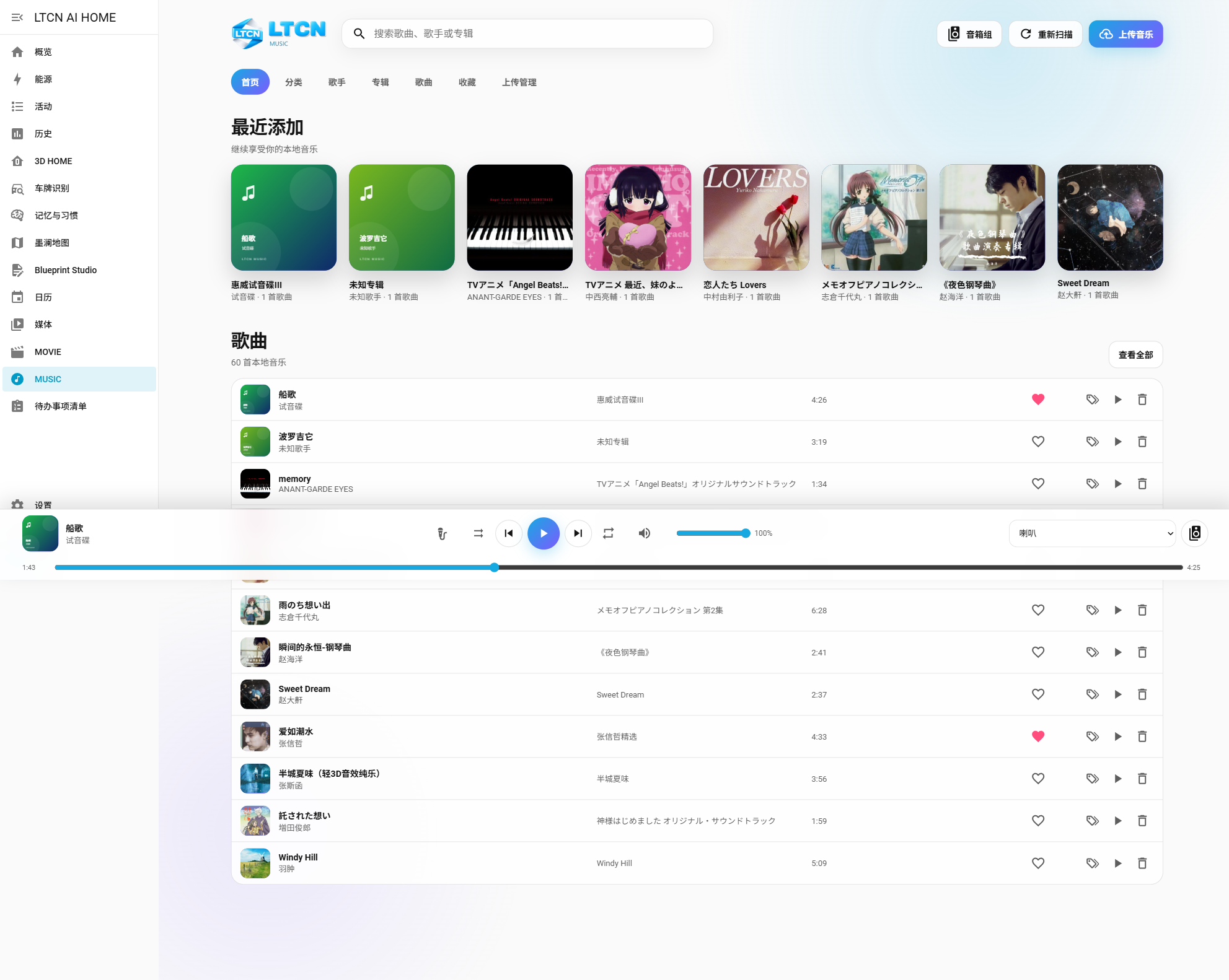
Sign in to Home Assistant and choose MUSIC in the left navigation. The library is above a fixed playback bar; phones and tablets use a compact layout. Search for songs, artists or albums at the top, then browse categories, artists, albums, songs, favorites and uploads. The playback bar provides device selection, playback controls, volume, progress and a lyrics button.
Upload music or connect a NAS
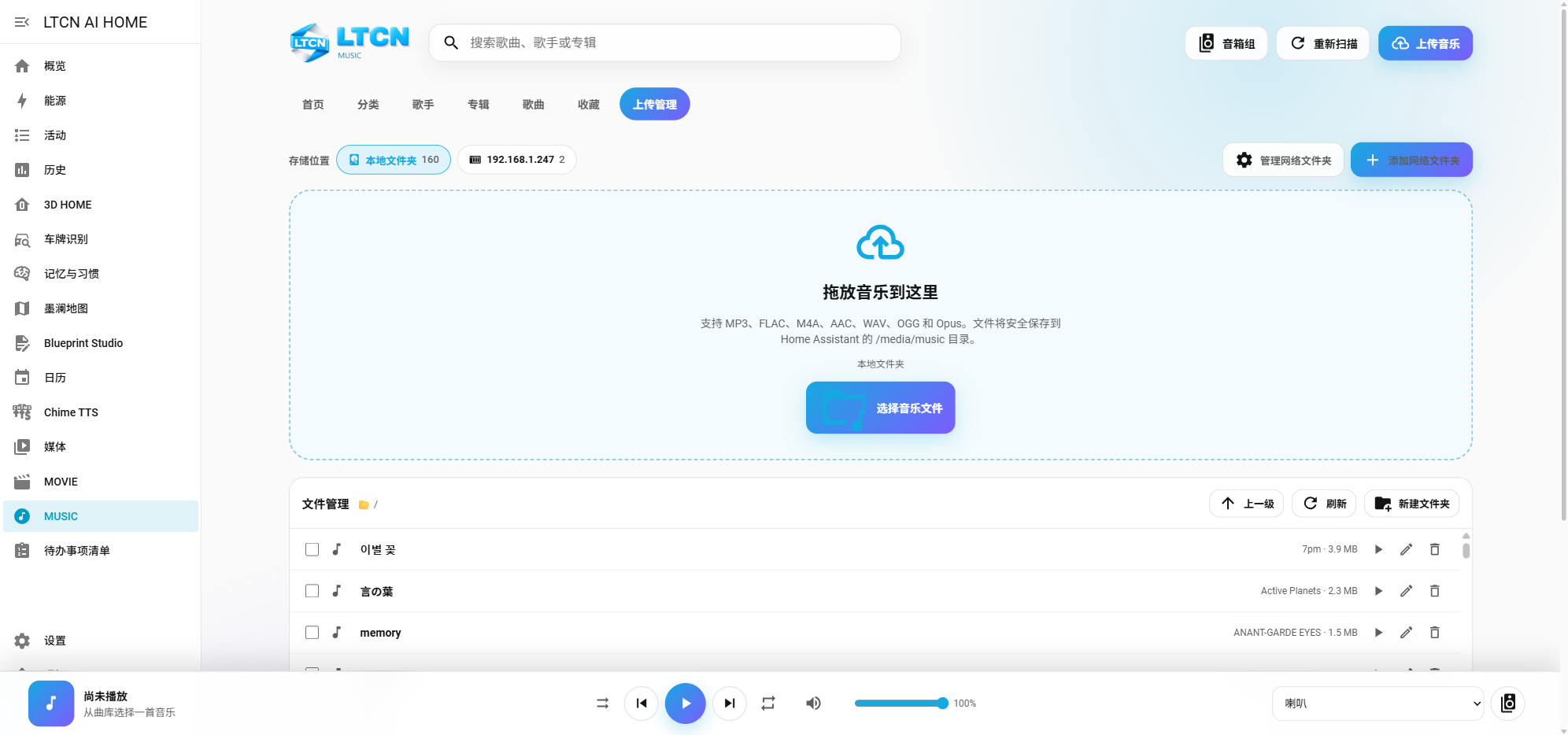
Choose Upload Music or Upload Management. For local files, select Local folder, drag files into the upload area or choose files, then run Rescan. For a NAS, add a network folder, enter its address, share path and credentials, select that source and rescan. Supported formats are MP3, FLAC, M4A, AAC, WAV, OGG and Opus.
Scan, search and organize the library
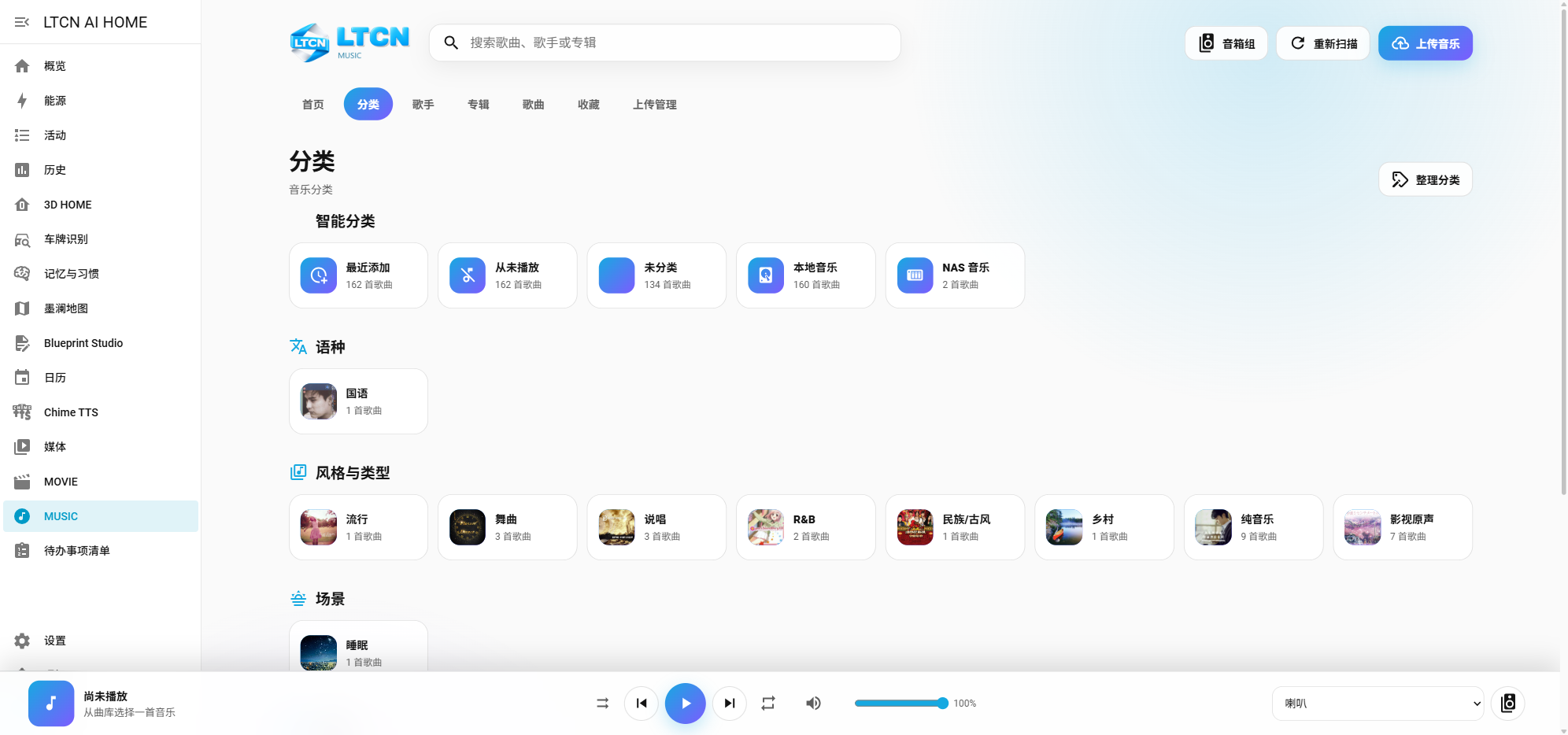
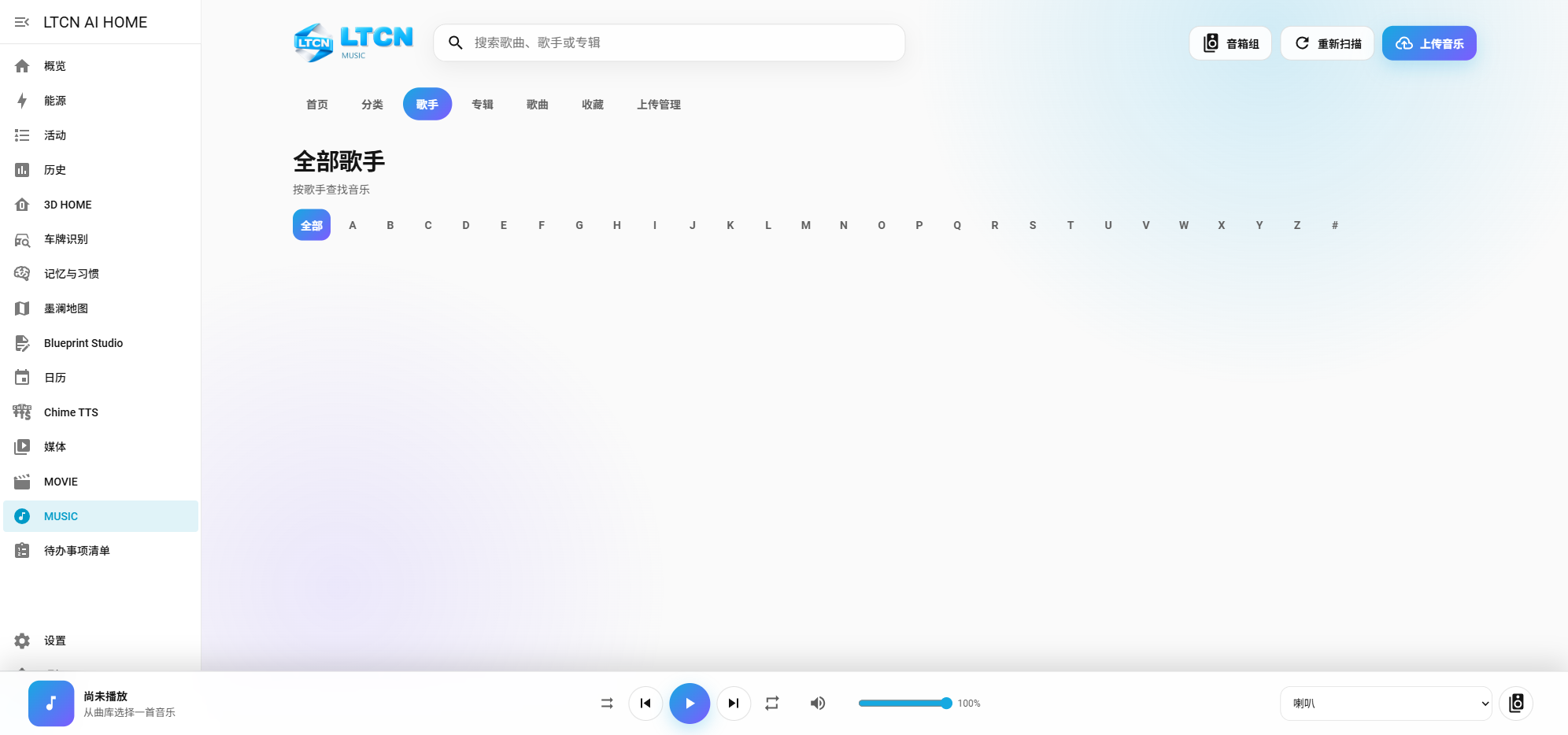
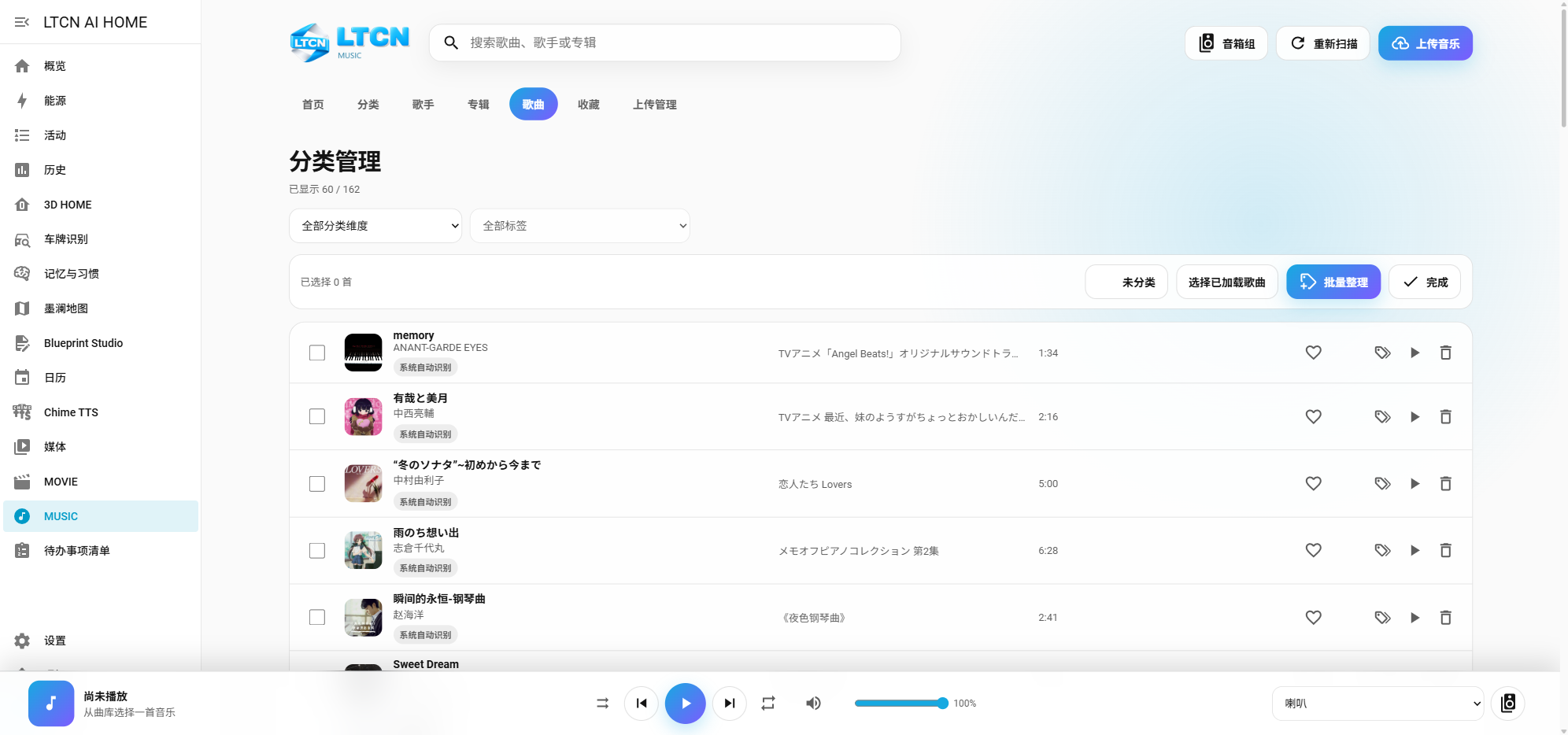
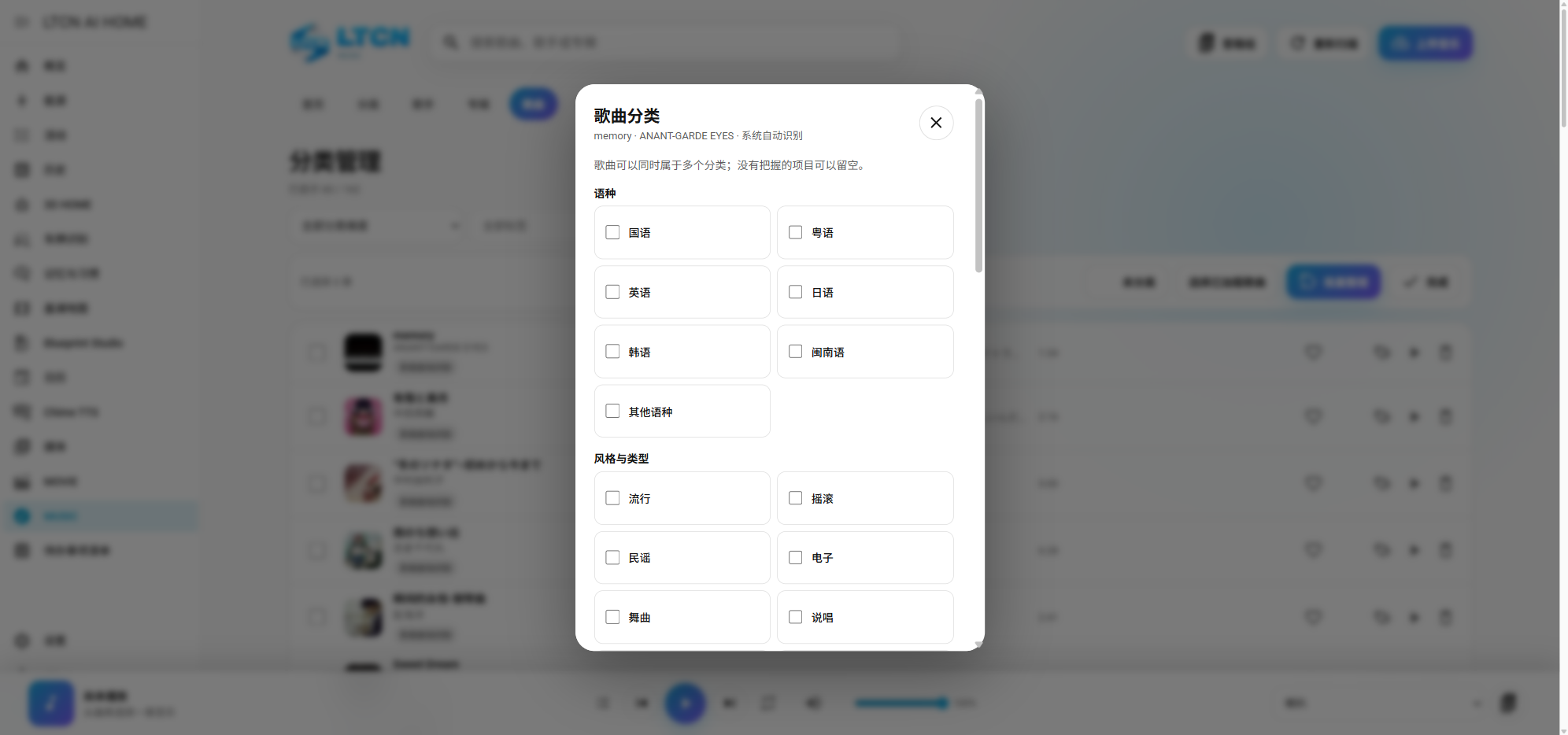
Rescan reads song titles, artists, albums, duration and artwork into a local index. Search by song, artist, album or filename; Chinese titles also support Pinyin search. Browse by language, genre, scene, mood, decade or artist. Use Manage Categories to add or remove tags. A song can have several tags, and you can set a default category for an artist. NAS browsing uses the index after a full scan.
Select a device, play and seek
Before playback, choose a speaker, a saved group or This browser (current device) under Select playback device at the bottom right. Then start a song. Pause, skip and volume act on the chosen target. Pause retains the current position; when the device supports resuming, playback continues from that point. The bar shows elapsed time, total duration and a draggable progress handle. Drag it to a new position and release to continue there. Automatic progress refresh pauses while you drag.
Favorites, playlists and restart recovery
Use the heart icon to set or remove a favorite. Create, rename and delete playlists; add, remove and reorder tracks, and start a list directly or through the internal voice assistant. After Home Assistant restarts, the queue, current position, shuffle and repeat settings are restored in a paused state without automatically making sound. Starting playback after a restart begins the current song again.
Automatic lyrics and line-by-line scrolling
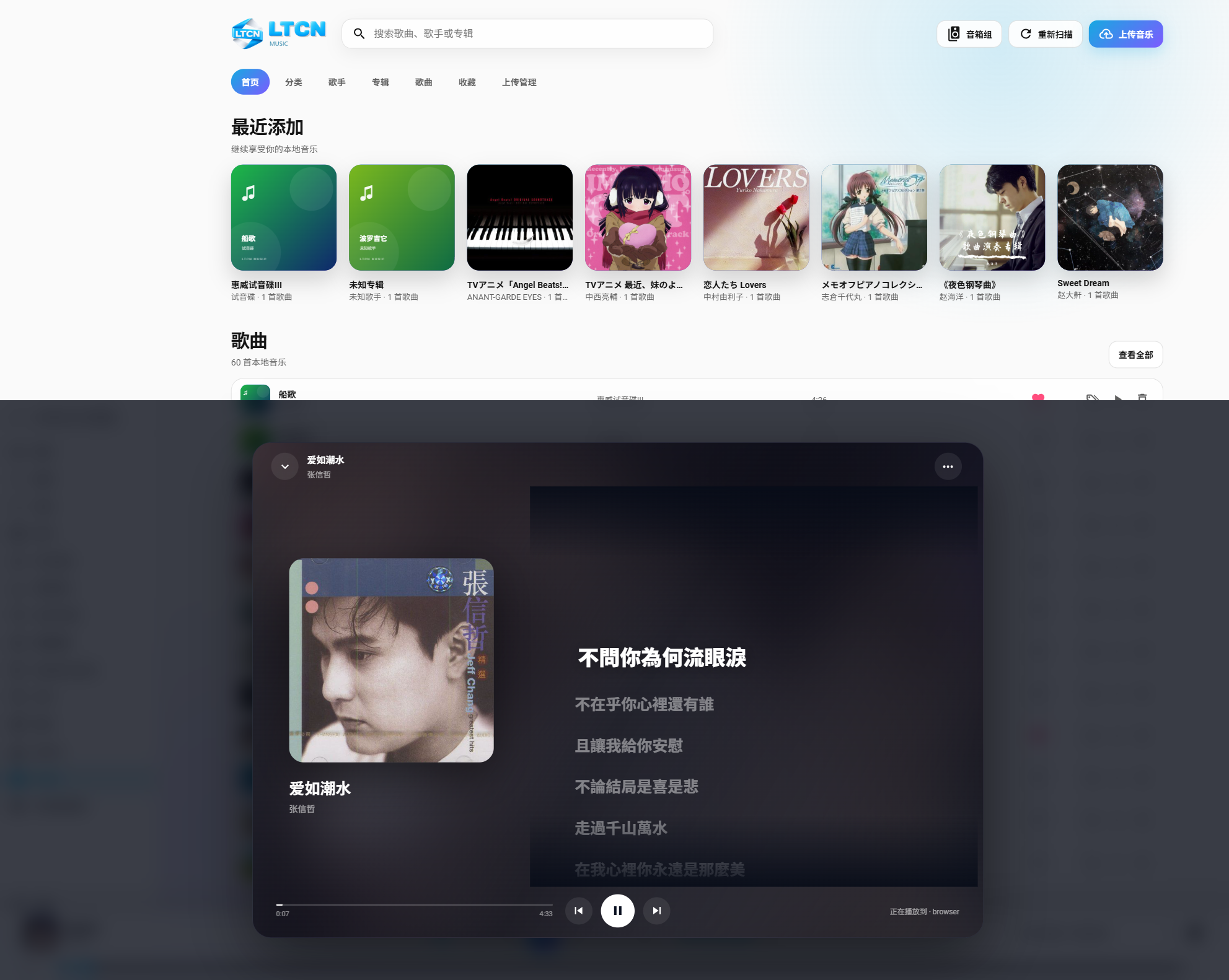
While a song plays, select the microphone icon beside its information to open lyrics. LTCN MUSIC first checks a matching lyrics file beside the song or embedded lyrics. If none is available, it searches online using title, artist, album and duration. Timed LRC lyrics highlight and smoothly scroll line by line. If the current player supports seeking, tap a line to play near it. Use the lyrics menu to choose another match, paste lyrics or upload an LRC/TXT file; manually saved lyrics go into the cache and do not change the music file.
Create a multi-speaker group
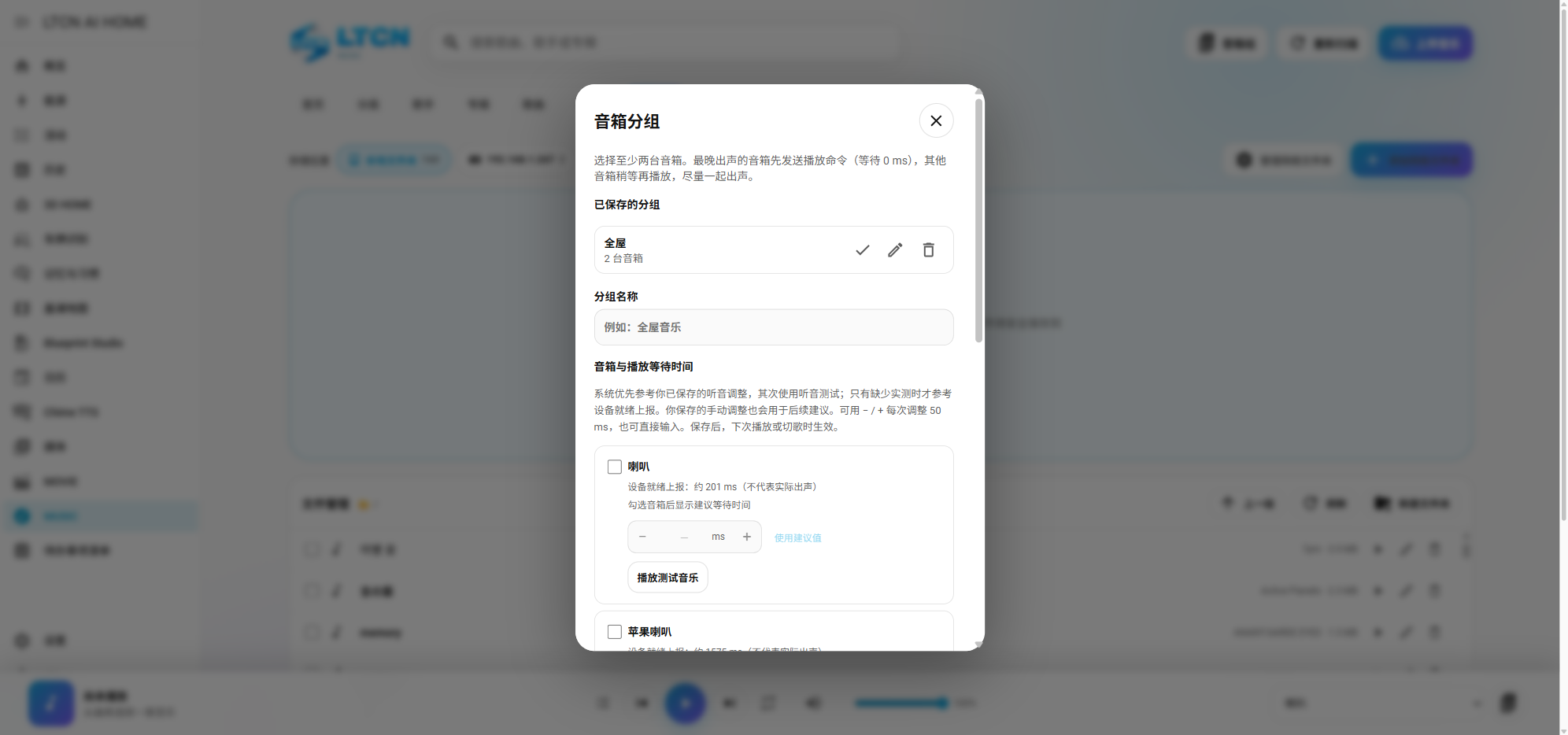
Open Speaker Groups, choose a name and select at least two Home Assistant media players. Test each speaker first. Start Test Music to hear the group, then adjust each device’s start delay in 50 ms steps until the starts sound close together. You can combine different player types, including DLNA and Apple-compatible devices. This is start-time adjustment, not continuous drift correction.
Common questions
MUSIC is missing or keeps loading
Wait for Home Assistant to finish starting, then refresh. Check Settings → Devices & services to confirm LTCN MUSIC loaded; restart Home Assistant if needed.
Uploaded songs are not in the library
Run Rescan in MUSIC. For a NAS, confirm the network folder is connected and the correct source is selected.
A speaker works in Home Assistant but not in MUSIC
Test whether the native Home Assistant media player accepts a media URL. Stop music already playing on the device, then select it again in MUSIC.
Speakers in a group still start at different times
Retest each speaker and adjust its start delay in 50 ms steps. Network conditions can change the result.
Why can’t I drag the progress bar?
The speaker may not yet have reported a reliable duration, may not support seeking, or the current audio was not pushed by LTCN MUSIC. Wait for playback to start; the bar remains read-only when safe seeking is unavailable, including mixed-platform groups.
Lyrics are missing or the match is wrong
Check the song title and artist, then choose Rematch from the lyrics menu. You can also paste lyrics or upload the corresponding LRC/TXT file.
What happens when I delete music?
File Management deletes the actual file and removes related favorites and playlist entries. Keep a backup first; read-only NAS sources may prevent deletion.