

HADTUSCAN (shown as HAIScan inside the app) is a portable, no-install configuration tool for DTUs and network modules on a local network. It discovers devices over UDP broadcast and pushes IP address, subnet mask, gateway, DNS and hostname in one go, and it also offers mDNS scanning for Home Assistant / ESPHome to quickly locate devices on the discovery path. The whole tool is a single .exe — double-click and it runs, which makes it a good fit for setting up network parameters on devices in bulk at a factory or on site.
What this guide covers
- Overview and system requirements
- Quick start: configure a device in four steps
- Interface layout, device discovery, UDP scan and HA mDNS scan
- Pushing network parameters and the PIN authentication rule
- Themes, language, safety notes and protocol integration
Overview
HADTUSCAN addresses the stretch where a device is not on the network yet but you need to get it online. It does not rely on the device already being reachable in a browser: as long as the PC and the device sit on the same Layer 2 network, it can flush the device out over UDP broadcast and rewrite its network parameters.
1.1 When to use it
- Configuring static IPs or DHCP for a large number of DTUs quickly, in a factory or on site.
- Initialising and double-checking network parameters before devices are connected to a host system.
- In Home Assistant / ESPHome setups, finding devices quickly over mDNS and opening their web configuration.
1.2 System requirements
Quick start
Going from nothing to a configured device takes four steps:
- Double-click HADTUSCAN.exe (no installation needed).
- Pick the correct network adapter at the top — preferably the wired adapter on the same subnet as the device.
- Click Scan devices (UDP) to find configurable devices, or click HA mDNS scan to find mDNS-only devices.
- Select a device in the list, fill in the target network parameters and the PIN, then click Push configuration.
Step 2, choosing the adapter, is where things most often go wrong. On a multi-adapter machine (one running VMware, Hyper-V or WSL) the default may be a virtual adapter, in which case the scan will always come back empty — first check that the selected adapter’s IP is on the same subnet as the device.
Interface layout
The main window is divided into four areas from top to bottom. Knowing what each one does keeps you from clicking the wrong thing:
Device discovery (UDP scan)
A UDP scan sends DISCOVER_REQ to the broadcast address of the selected adapter and to 255.255.255.255; devices reply with a unicast DISCOVER_RSP. In other words, whether a scan succeeds depends on two things: the broadcast getting out, and the reply getting back.
4.1 Troubleshooting
HA mDNS scan
mDNS scanning finds devices that advertise Home Assistant / ESPHome services on the local network. Note that mDNS usually only exposes the IP address, hostname and service name plus a few TXT fields — it does not carry the full network parameters such as gateway, mask and DNS. So it can find a device, but it cannot reconfigure one.
http://device-IP/ for web configuration or status monitoring.Pushing network parameters (SET_NET)
Pushing is the real “write” operation in this tool. Get it wrong and the device drops off the network, so there are three hard rules:
- Every push must carry a 6-digit PIN (the default is 123456).
- With static IP mode you must fill in IP / mask / gateway / DNS; with DHCP you may leave them blank (the app fills in
0.0.0.0). - Apply mode: switch immediately or write and reboot (depending on the device firmware).
6.1 PIN rules
123456 is the 6 bytes 0x31 0x32 0x33 0x34 0x35 0x36).6.2 Success and failure feedback
Theme and language
Safety and precautions
Confirm these before pushing
Pushing network parameters can change a device’s IP or take it offline briefly, so do it during a maintenance window.
Validate the procedure on a small number of devices before configuring in bulk.
If the devices are on a production network, confirm the broadcast policy and IP plan with your network administrator first.
Protocol and hardware integration (summary)
If you are implementing this protocol on the hardware side yourself, note two things:
docs/udp-protocol.md (covers CRC32 parameters, strict length validation and test vectors).About: version info and OTA updates
To see which version you are running, or to upgrade straight to the latest build, click About at the far right of the top bar. The “About HAIscan” dialog opens.
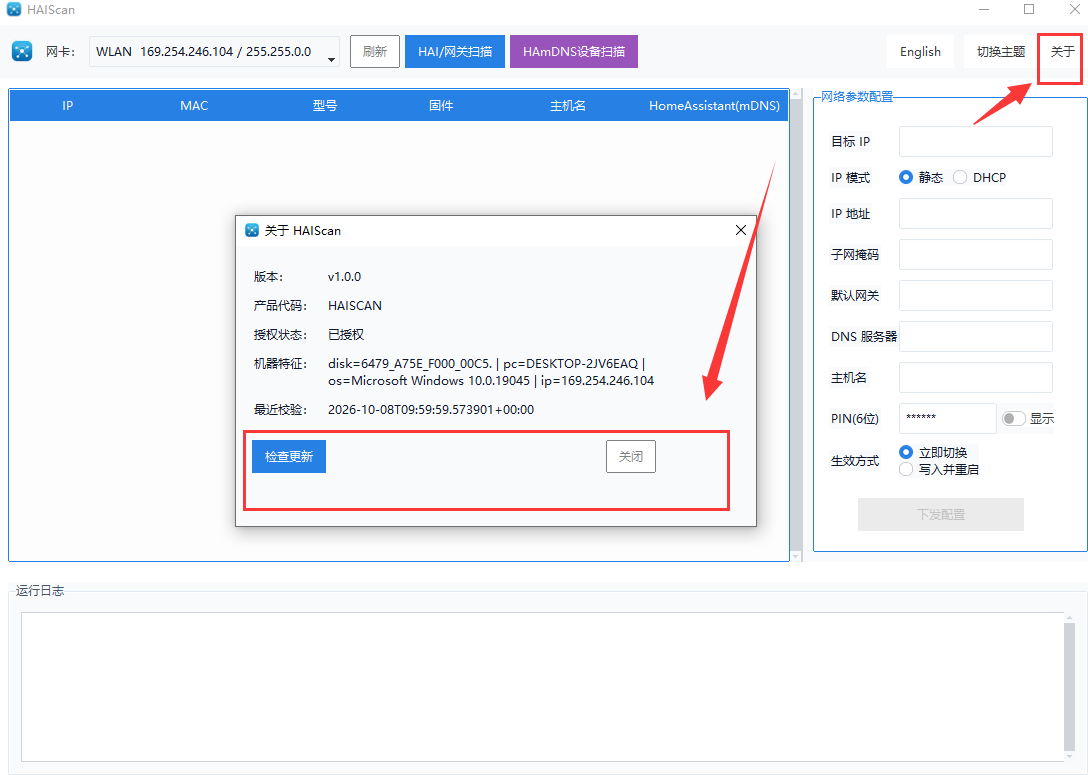
The dialog lists the following fields:
There are two buttons at the bottom of the dialog:
The machine fingerprint is built from disk=disk serial | pc=computer name | os=operating system | ip=local IP. Replacing the hard drive, renaming the computer or moving to another subnet all change it — if the licence stops working, check here first.
Release notes
Next steps
Once the network parameters are set, the device is ready to be brought into Home Assistant. If it is not connected yet, start with Connecting the Lite Xiaozhi AI Voice Speaker; to switch the voice assistant over to an external model, see How to Use an External Model with the HA Voice Assistant; and there is a more fully featured LTCN AI Desktop Assistant for the desktop that works well alongside it.

