

By default the Xiaozhi voice assistant answers you with the conversation agent built into Home Assistant. If you would rather have it use an external large language model such as DeepSeek, OpenAI, Kimi or Zhipu, there is no firmware to flash and no config file to edit — install the LTCN AI Conversation integration in Home Assistant, enter your own API key, and point the assistant’s Conversation agent at it. Three steps, a couple of minutes.
What this guide covers
- Install the LTCN AI Conversation integration in Home Assistant
- Pick a model provider and enter the API key
- Switch the voice assistant’s Conversation agent over
Install the LTCN AI Conversation integration
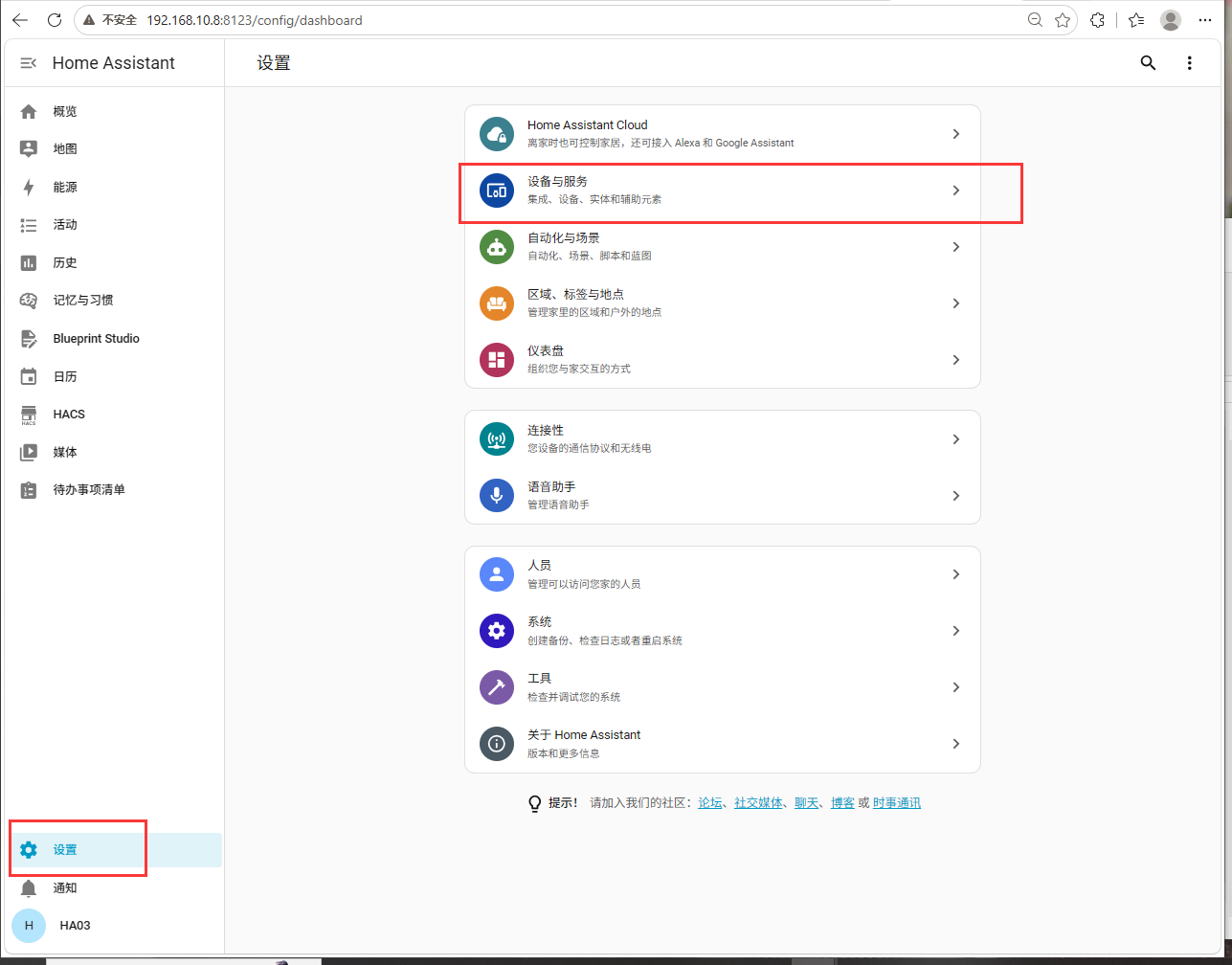
First get this “interpreter” integration into Home Assistant. It forwards the assistant’s question to the external model and brings the answer back. In the Home Assistant sidebar click Settings at the very bottom, then find and click Devices & Services on the settings page.
Under “Devices & Services” find the LTCN AI Conversation integration and open it, then click Add service in the top right of the page.
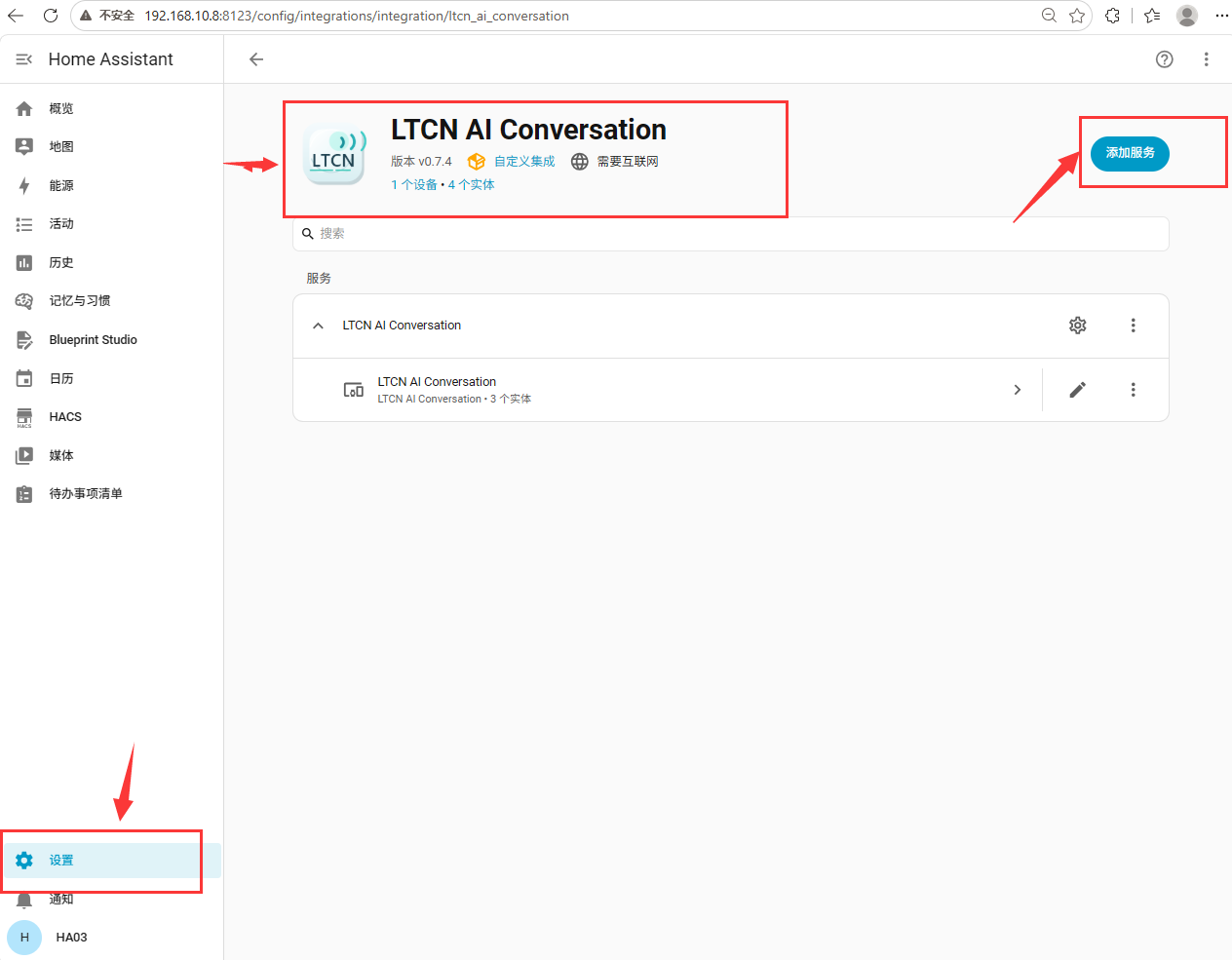
No LTCN AI Conversation in the list? Click Add integration at the bottom right, search for LTCN and install it, then come back. It will carry a “custom integration” badge afterwards — that is normal.
Pick a model provider and enter the API key
Clicking “Add service” opens the LTCN AI Voice Assistant dialog. The first field, Model provider, is a dropdown — open it to see every available provider.
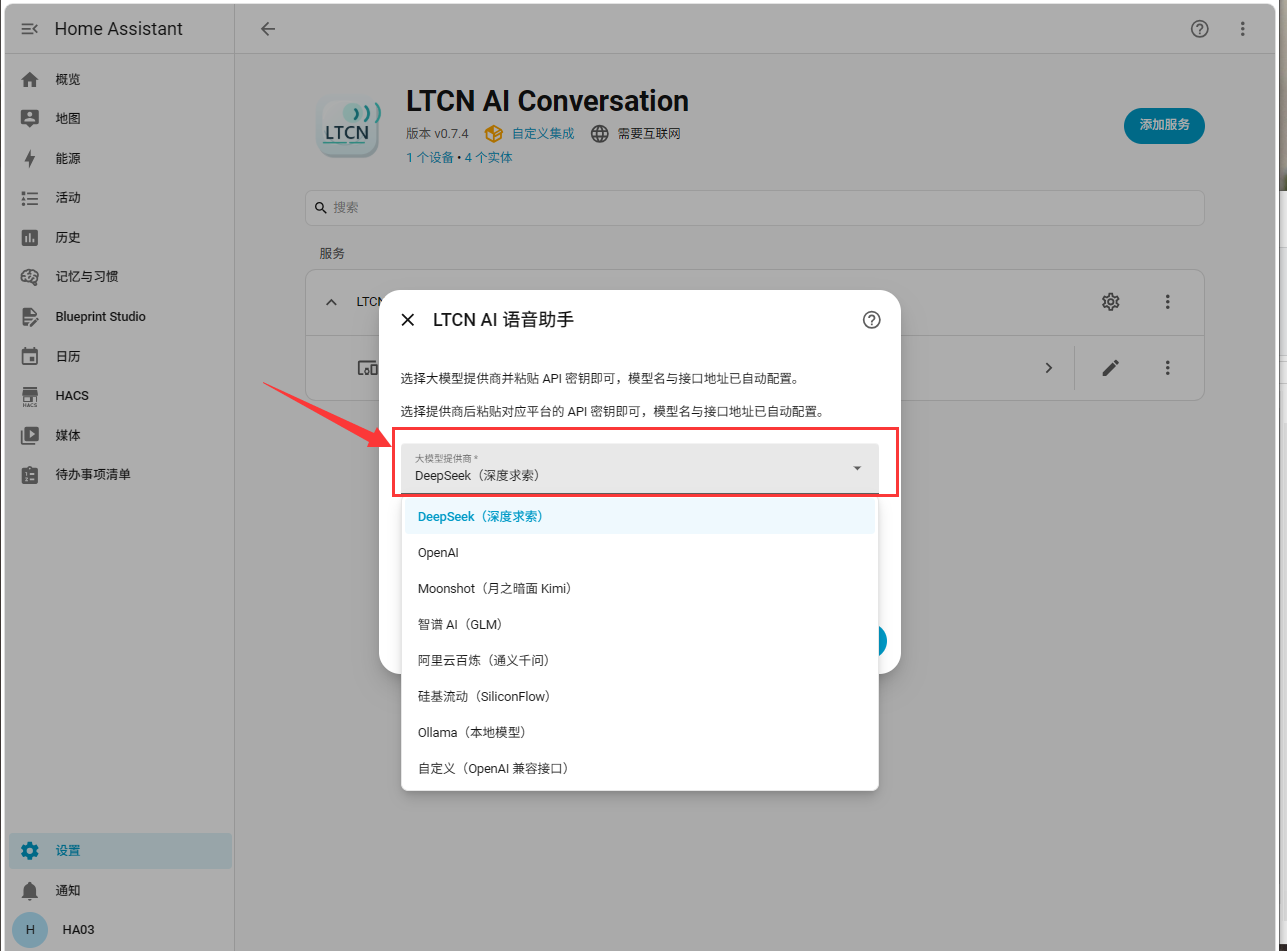
Pick the provider you want — DeepSeek in the example below — then paste the API key you obtained from that provider’s console into the API key field and click Submit. The model name and endpoint are filled in automatically per provider, so there is nothing to type by hand.
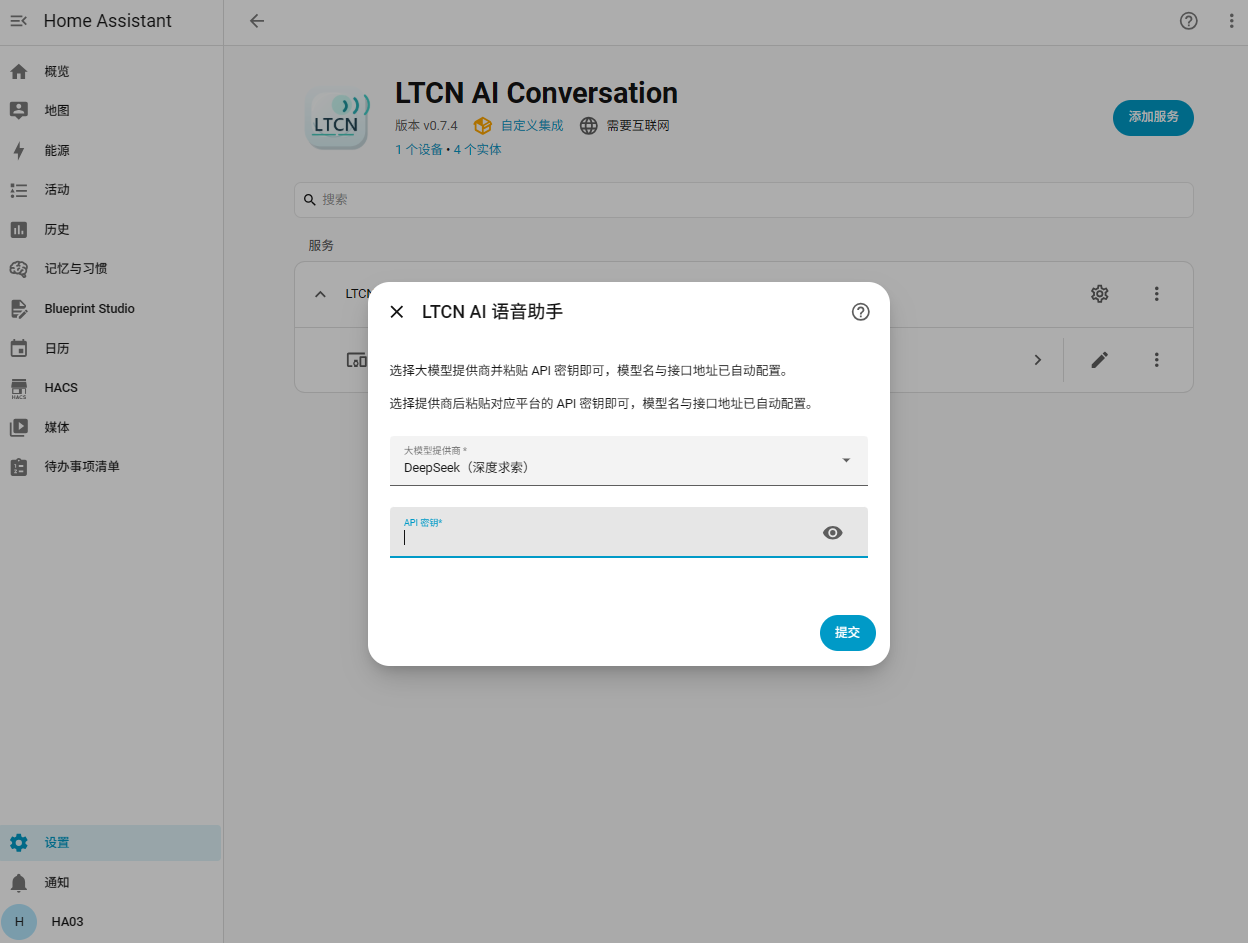
The dropdown offers online providers such as DeepSeek / OpenAI / Moonshot (Kimi) / Zhipu AI (GLM) / Alibaba Cloud Model Studio (Qwen) / SiliconFlow, plus Ollama (local models) and Custom (OpenAI-compatible endpoint) — pick one of those two to run locally or to connect any OpenAI-compatible service. Online providers bill per usage, so request the key from their own console.
Switch the voice assistant’s Conversation agent over
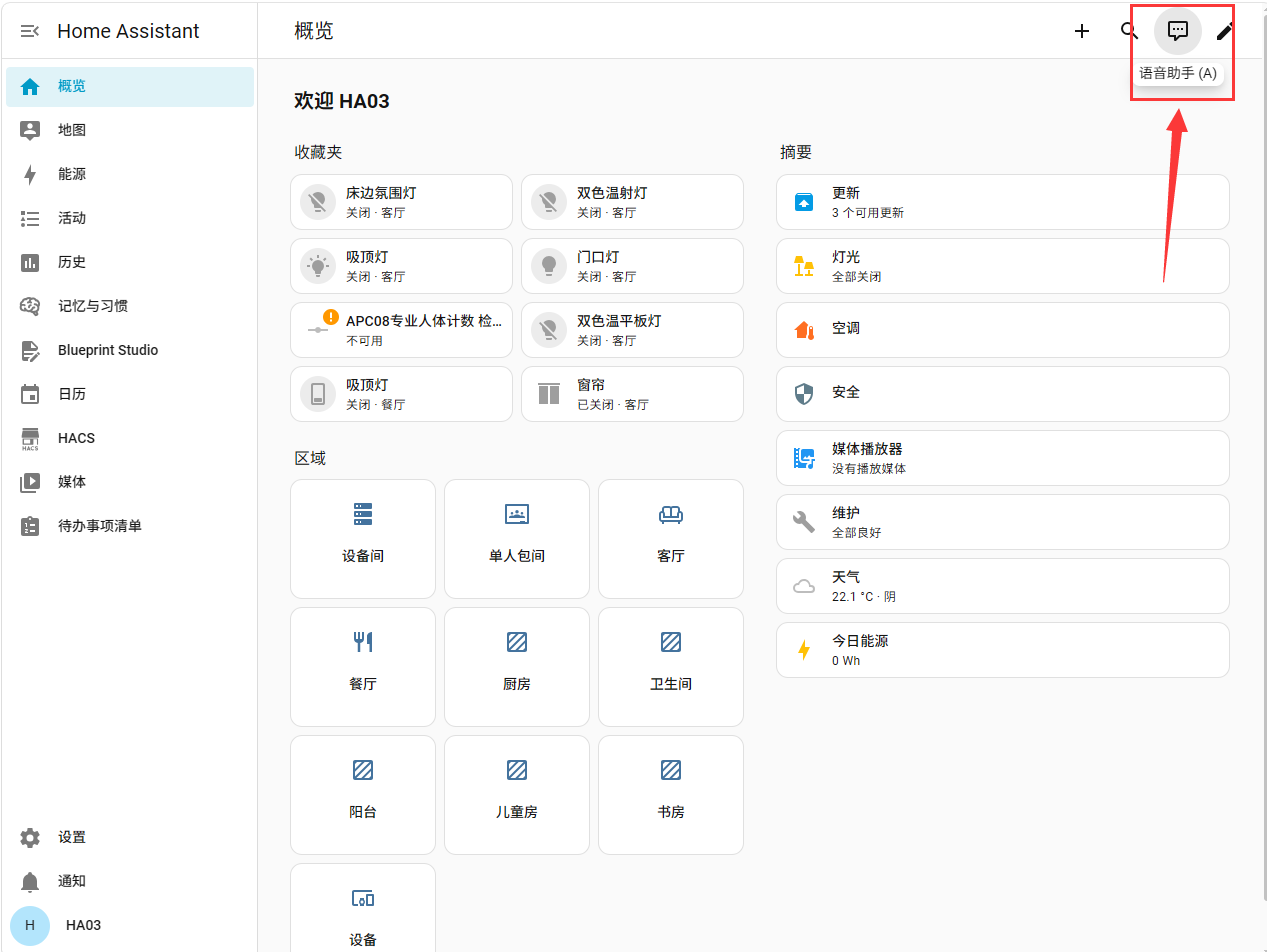
The integration is installed, but the voice assistant is not using it yet. Go back to the Home Assistant overview page and click the Voice Assistant icon in the top right to open the chat window; make sure Home Assistant is ticked, then click Manage Assistant to jump to the assistant settings.
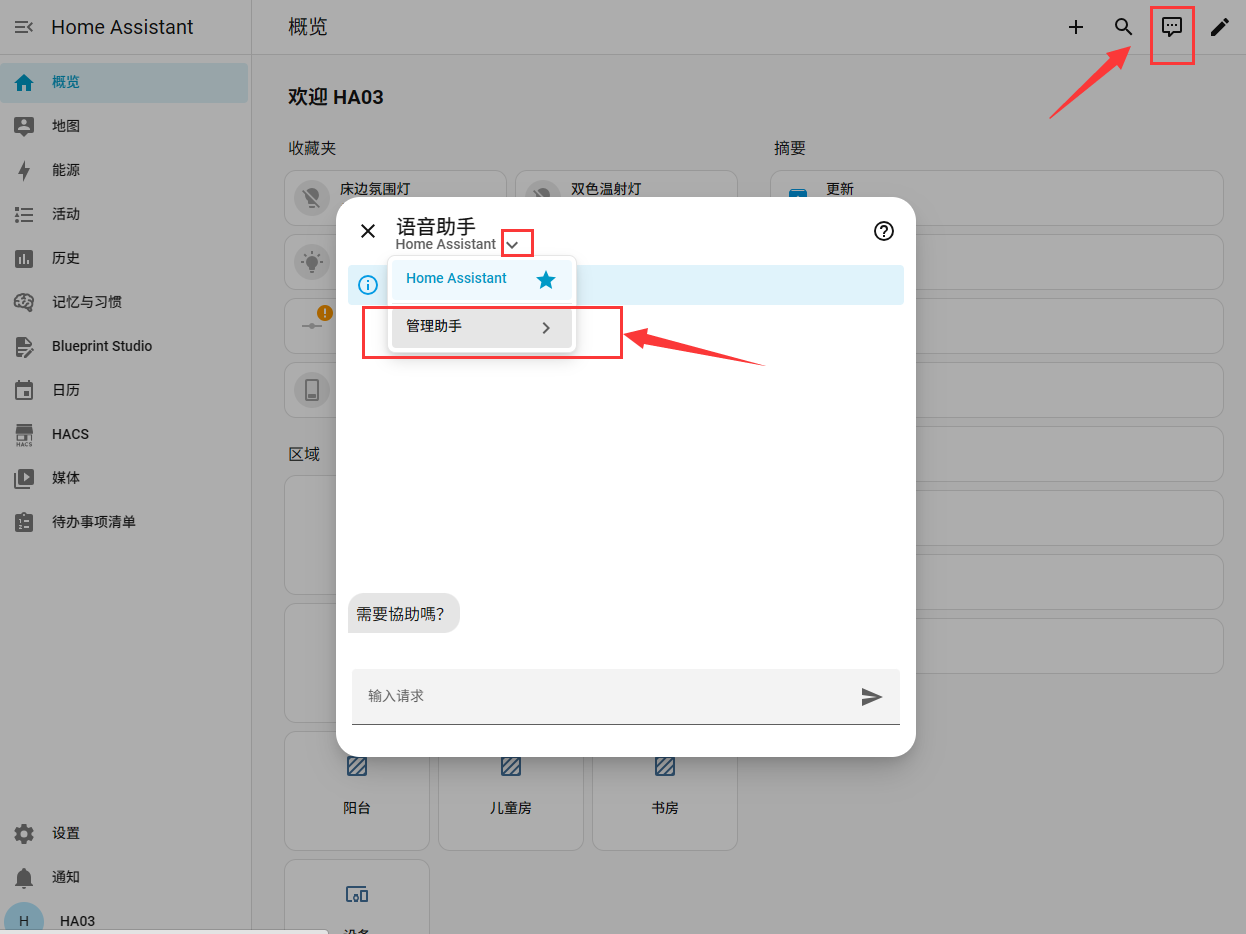
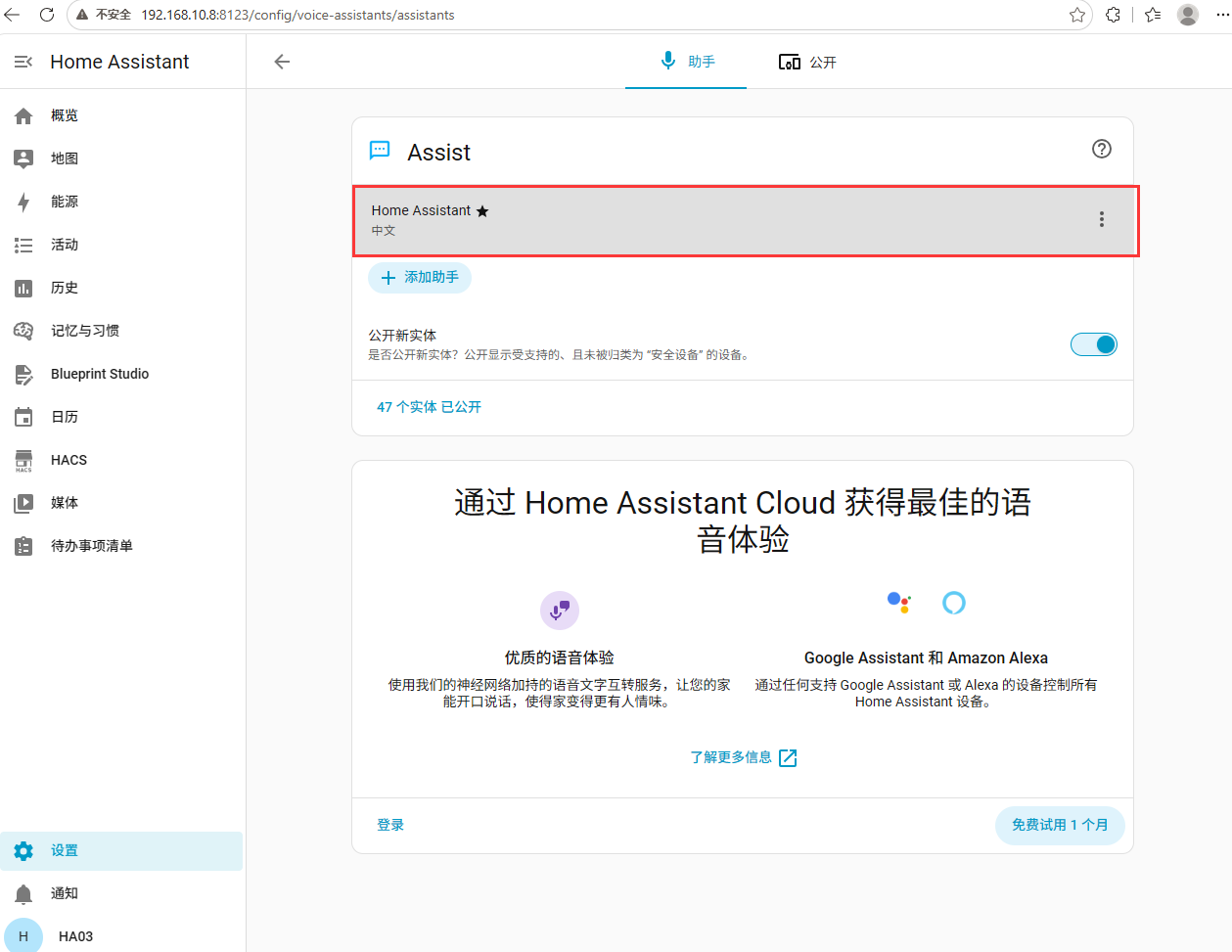
In the assistant list, select the starred default assistant Home Assistant under Assist and open it.
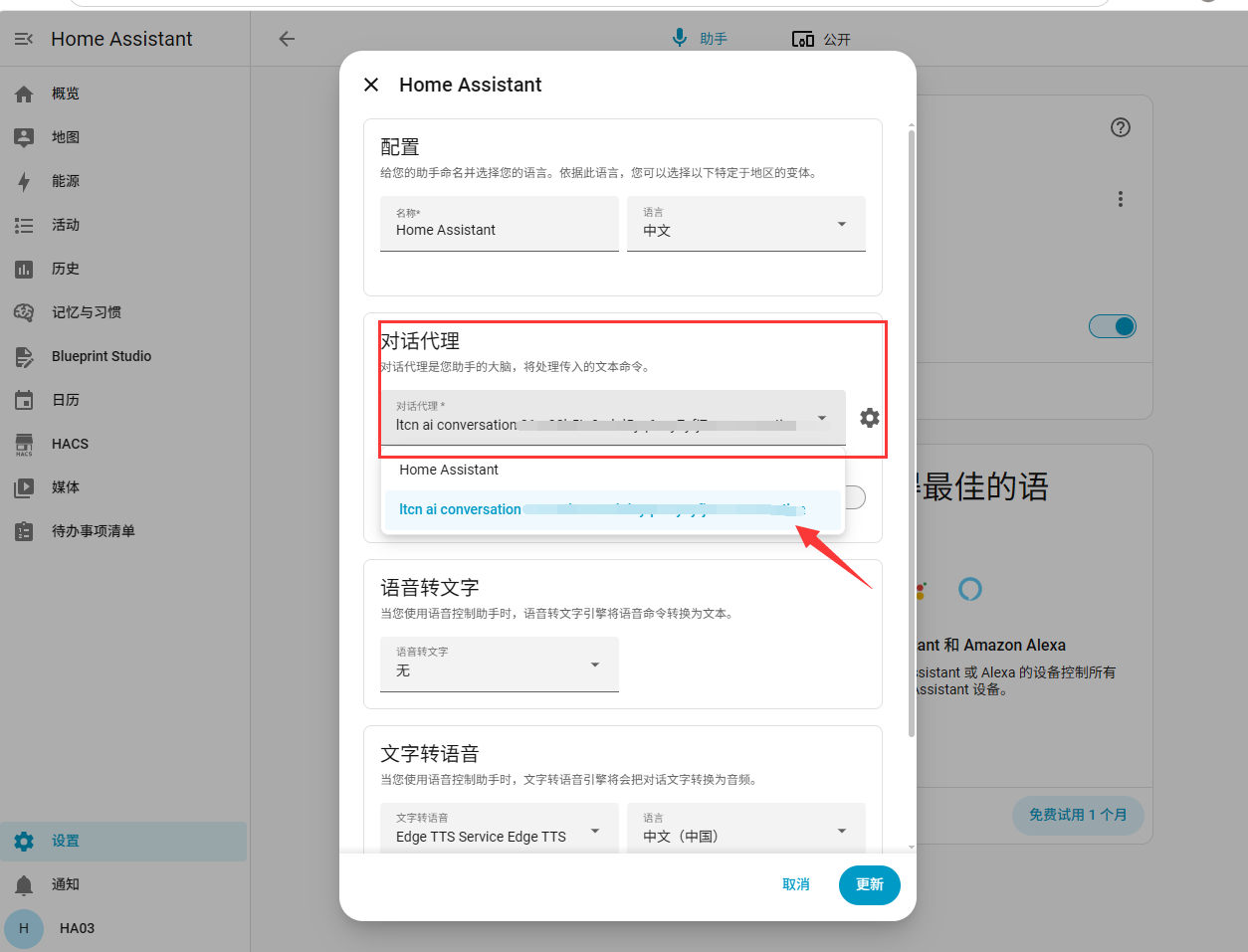
Find the Conversation agent row in the dialog, change the dropdown from Home Assistant to ltcn ai conversation, and click Update at the bottom right to save. From this point on, every question you ask the voice assistant goes to the external model you just configured.
The change takes effect immediately — no Home Assistant restart needed. To switch back, or to move to another provider, return to this dialog and set Conversation agent back to Home Assistant, or add a new service on the integration page with a fresh key.
Next steps
Once the Conversation agent is switched, the voice assistant is already calling your external model — just ask it something. If this AI speaker is not connected to Home Assistant yet, start with Binding and Setup Guide for the Lite Xiaozhi AI Voice Speaker; to keep it on the newest firmware, see the System Update Guide; and if you are not sure what to say, read the commands out loud from Common Voice Commands and Feature Guide.

