

Standard Across The Nntire Lineup DESKTOP VOICE ASSISTANT · WINDOWS
Let your home understand you.
LTCN AI brings natural conversation, Home Assistant and real-time speech together. Say a few words and your lights, air conditioner and other devices respond.
BUILT FOR YOUR HOME
From one sentence to a whole home responding.
You do not need to rebuild your automations. LTCN AI calls the conversation agents you have already configured in Home Assistant.
Conversational control
“Set the living room to 26 degrees.”
“What is the indoor temperature now?”
Speak the way you normally do, and context is kept across turns.
It hears you — and shows it
The floating orb uses light trails, ripples and a core waveform to show listening, recognising, thinking and speaking.
The voice is your choice
Pick the language, dialect and character from the official voice list, preview them, then save the one that fits.
Quietly resident on your desktop
Closing the main window moves LTCN AI to the taskbar. Drag the floating orb anywhere convenient — click to wake the conversation, double-click to open the full window, right-click to manage settings or quit.
A QUIET, CLEAR DESKTOP
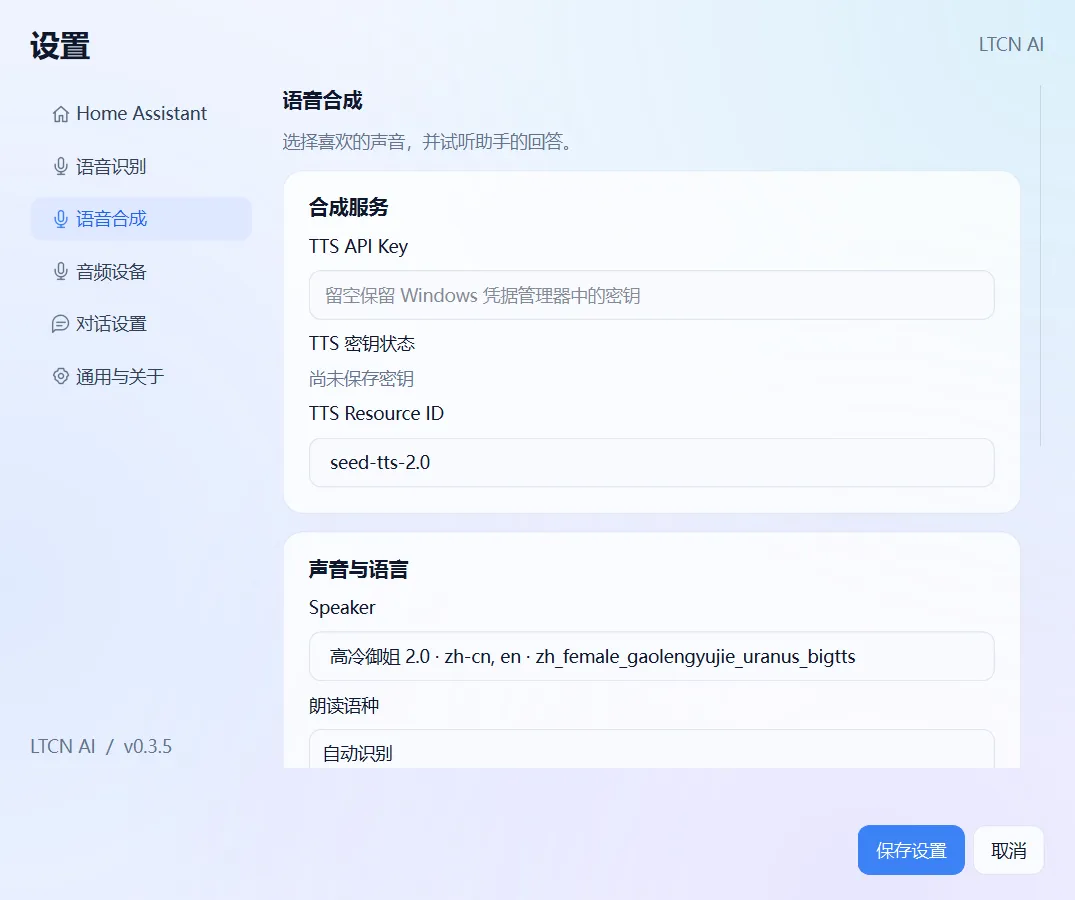
Complex settings stay in Settings.
The main window keeps only the conversation, the history and the essential actions. Voice service, voices, audio devices and the Home Assistant connection all have a clear place to be configured.
See the setup flow →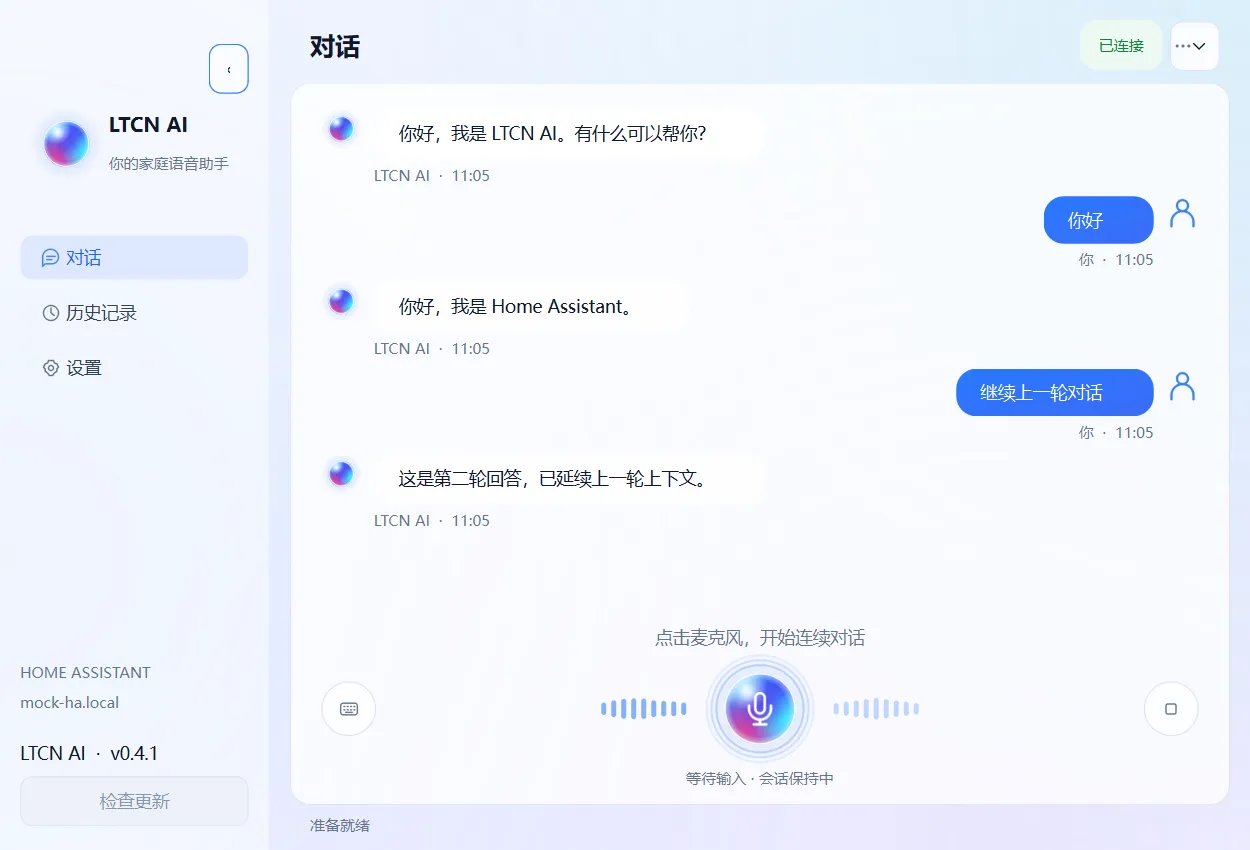
START IN A FEW MINUTES
First run: these five steps.
The setup wizard opens automatically after installation. Every step can be skipped and revisited later in Settings. Each step includes a screenshot of the actual interface.
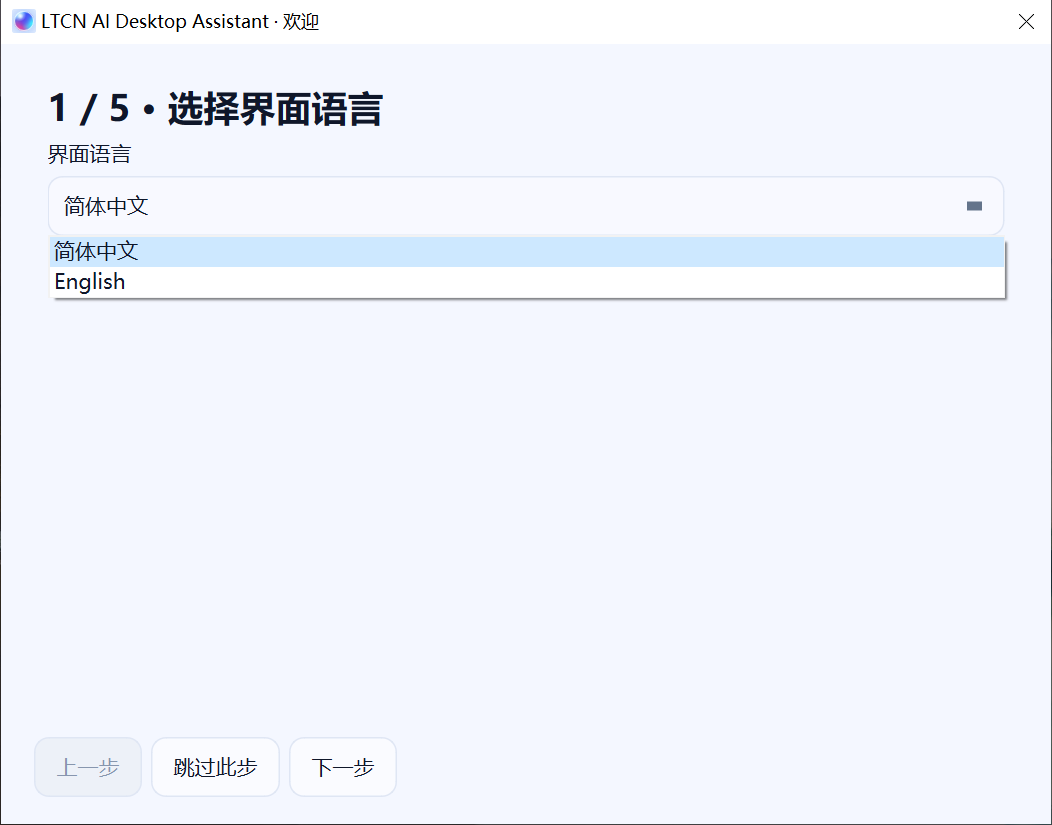
Choose language
Pick Chinese or English — the interface switches immediately.
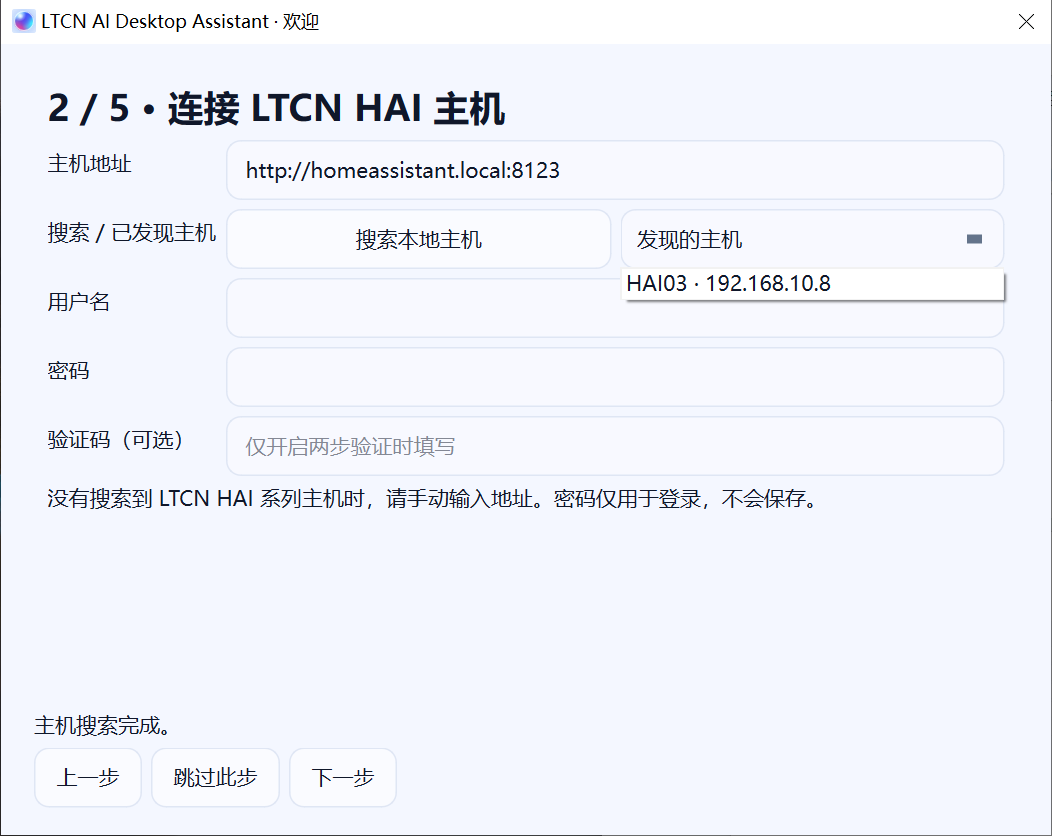
Connect the HA host
Search LTCN HAI hosts on your LAN automatically, or enter the address and sign in with username and password.
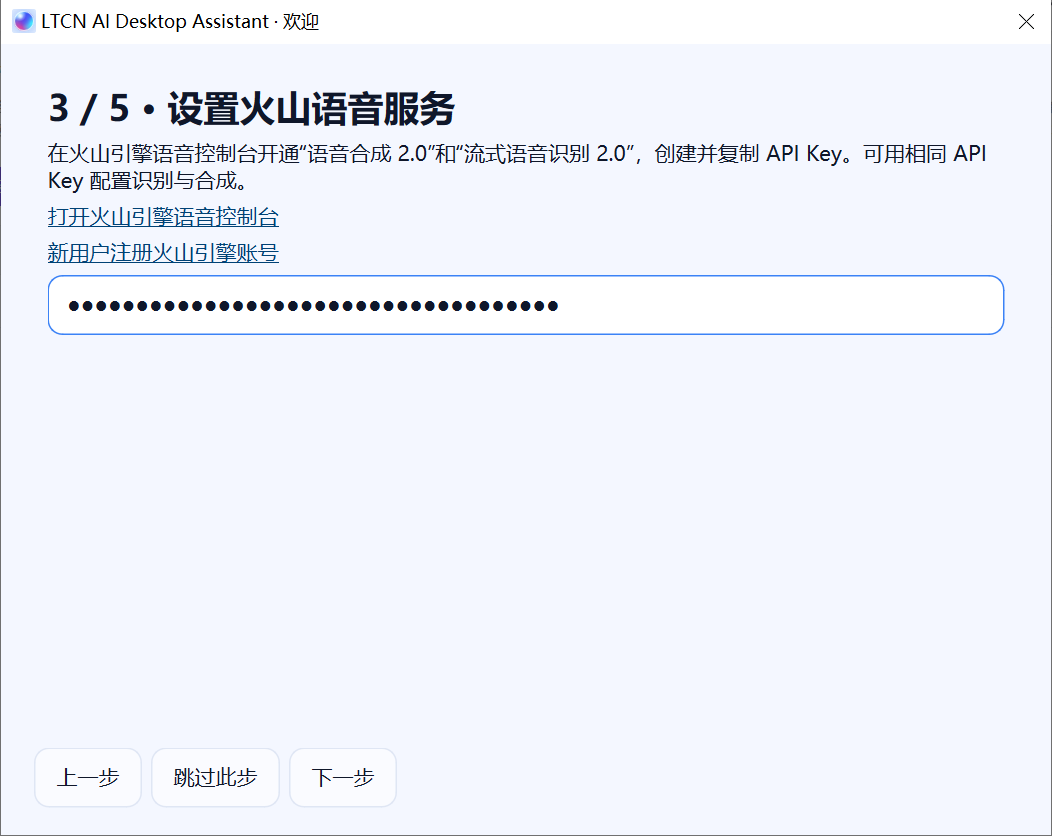
Enter the voice service
Paste your Volcano Engine API Key and enable Speech Synthesis 2.0 and Streaming Speech Recognition 2.0.
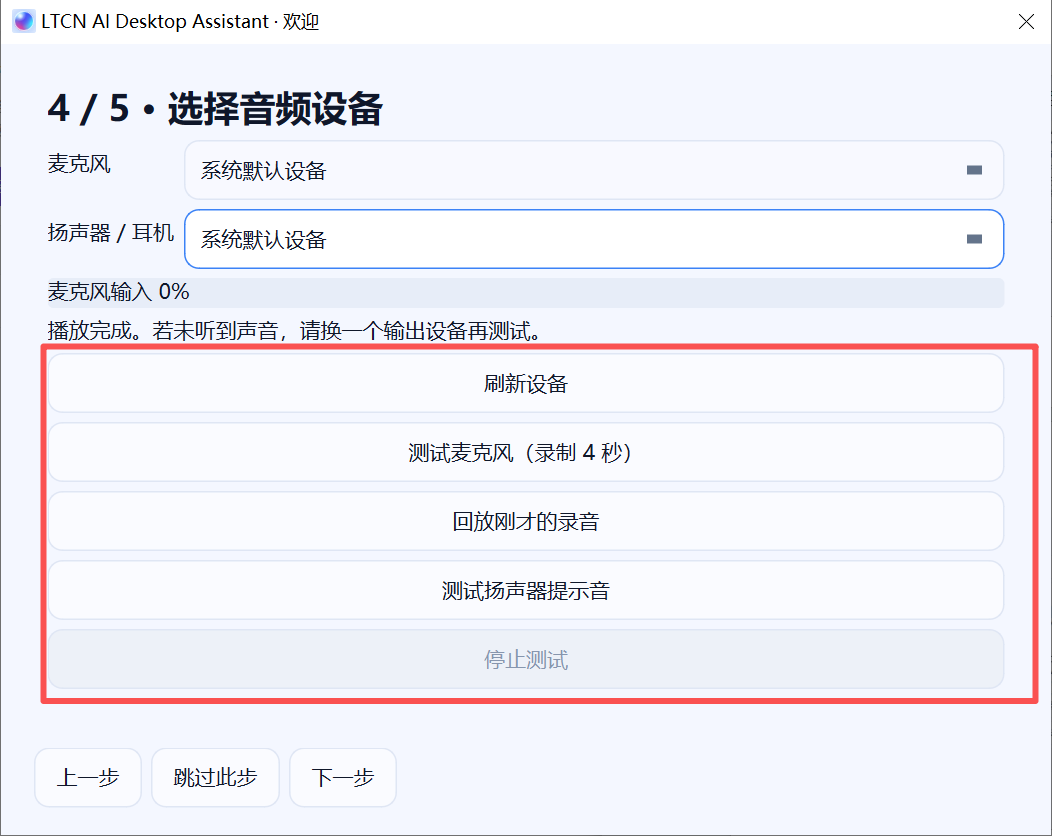
Test audio devices
Choose the microphone and speaker, record and play back, and play a test tone to confirm the audio path.
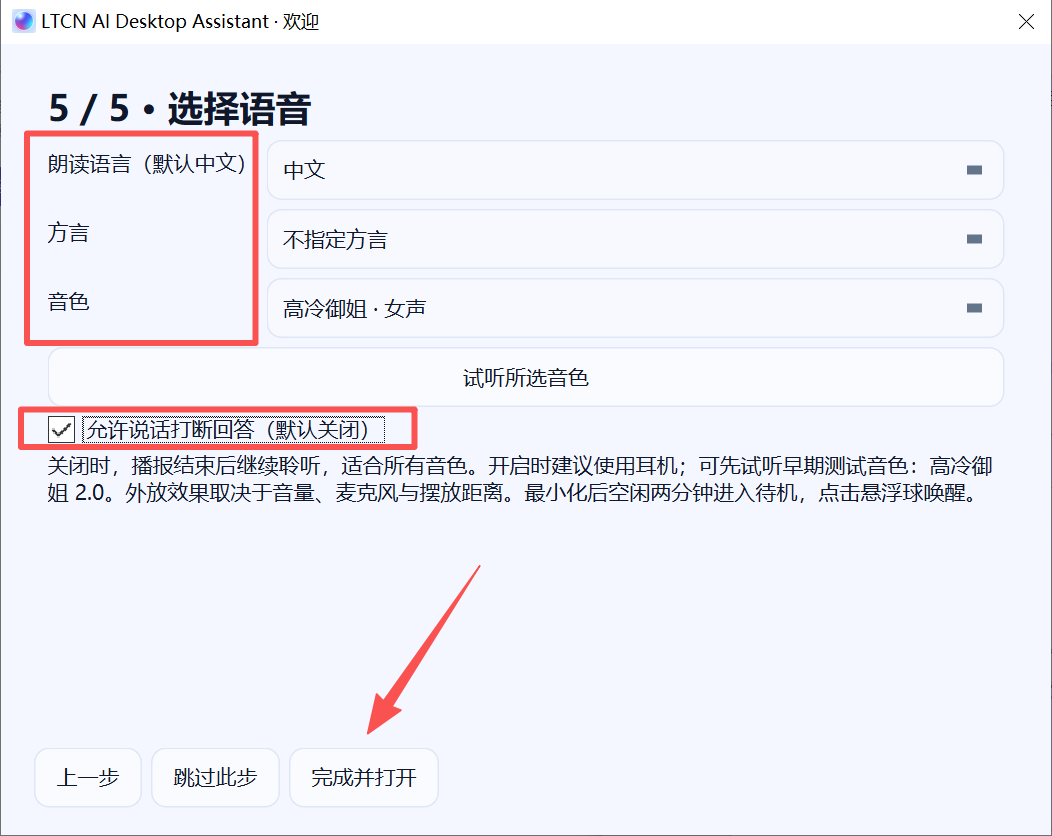
Choose the voice
Pick the language, dialect and character, preview it, then save and start talking.
QUICK START
After installation, try these three.
01“Turn on the living room light.”
02“Set the air conditioner to 26 degrees.”
03“What is the indoor temperature now?”
NEED A HAND?
Frequently asked questions
No LTCN HAI host was found — what should I do?+
First make sure the computer and the host are on the same LAN, then click “Refresh devices” or search again. If it still is not found, enter the host address manually in step 2, for example http://192.168.1.100:8123.
Why is there no sound?+
Go to Settings → Audio devices, reselect the microphone and speaker, and run an input test and an output test. On Windows you must also allow the app to access the microphone under Settings → Privacy & security → Microphone.
How do I stop answers from being interrupted by the assistant’s own voice?+
Both the step-5 wizard page and the speech recognition page in Settings have an “Allow speech to interrupt the answer” switch. Keep it off when using speakers; turn it on with headphones for a more natural conversation.
Does the app hold the microphone all the time?+
No. Voice interaction only starts once the main window or the floating orb enters conversation mode. When minimised to the tray it stays idle — click the orb to wake or stop it.
READY WHEN YOU ARE
Let the next sentence
go straight home.
Install LTCN AI, connect your Home Assistant, and start with one natural conversation.
Download LTCN AI ↓v0.4.5 · Windows installer · Custom install path supported
