

There are two ways to update Xiaozhi: say a few words and let the voice assistant check and upgrade by itself, or open Home Assistant and click update on the device page. Both bring the firmware up to the latest version — pick whichever suits you.
What this guide covers
- Check for a new version by voice
- Upgrade the system by voice
- Update manually in the Home Assistant backend
Check for updates by voice
The Xiaozhi voice assistant can handle updates on its own — no computer needed, just ask. Say the following in order and you can go from “is there an update” all the way to “what actually changed”.
Say these in sequence so it keeps the context — ask “is there a new version” first, then “what’s new”, and finally “tell me more”. Otherwise it will not know which update you mean.
Upgrade the system by voice
Once you know there is a new version and you want it, say the following. Xiaozhi will not start right away — it asks you to confirm first.
Being offline for 1–2 minutes during the update is normal — do not cut the power and do not keep calling it. Once it has restarted, ask “check for updates” again to confirm the version number is the new one.
Update manually in the Home Assistant backend
Use this route when it is inconvenient to talk, or when you want to read the release notes with your own eyes. Everything happens in the Home Assistant web interface.
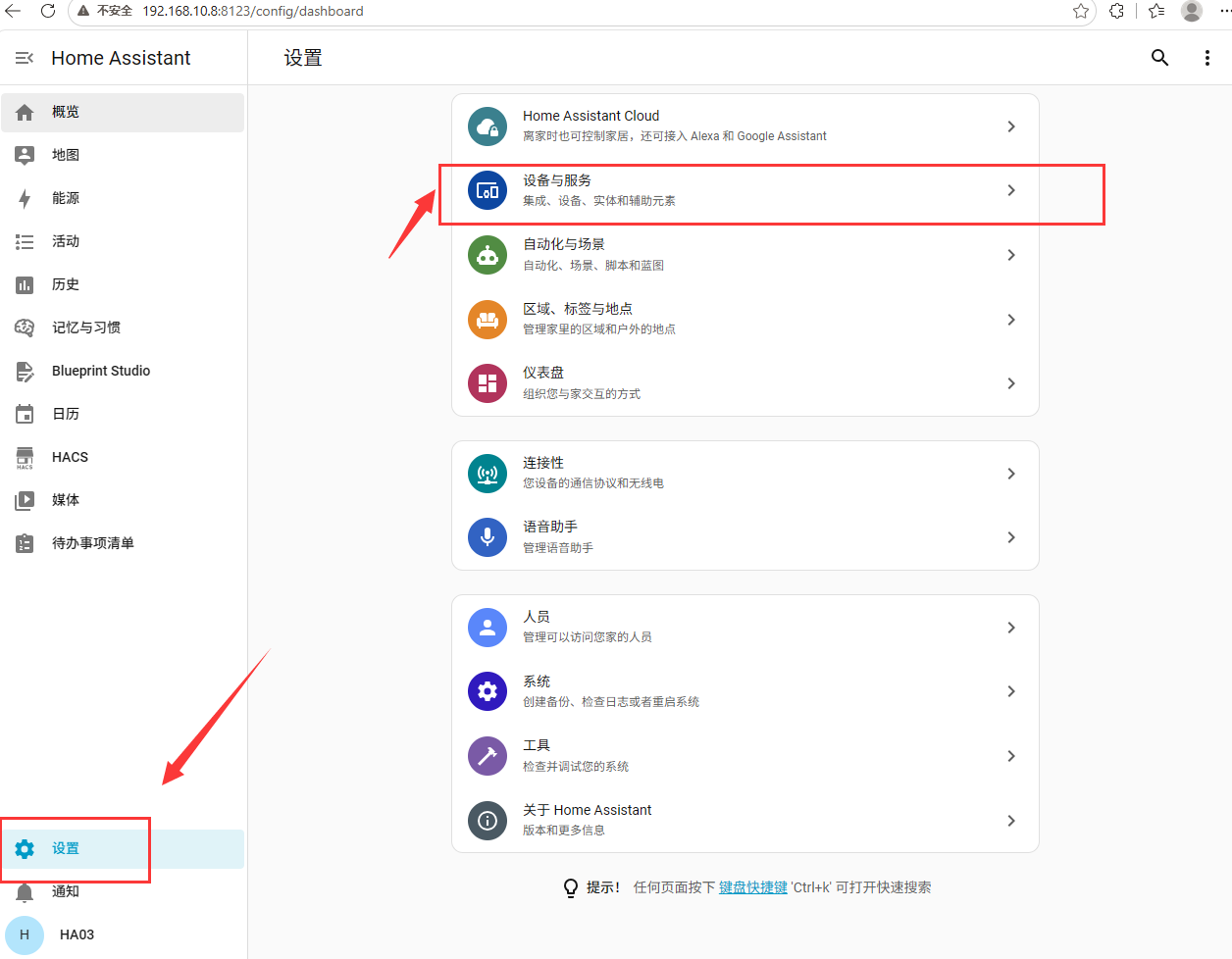
Open “Settings → Devices & Services”
In the Home Assistant sidebar click Settings at the very bottom, then find and click Devices & Services on the settings page.
Open LTCN AI and pick the speaker to upgrade
Under “Devices & Services” find the LTCN AI integration and open it — it lists every AI speaker already connected to this Home Assistant.
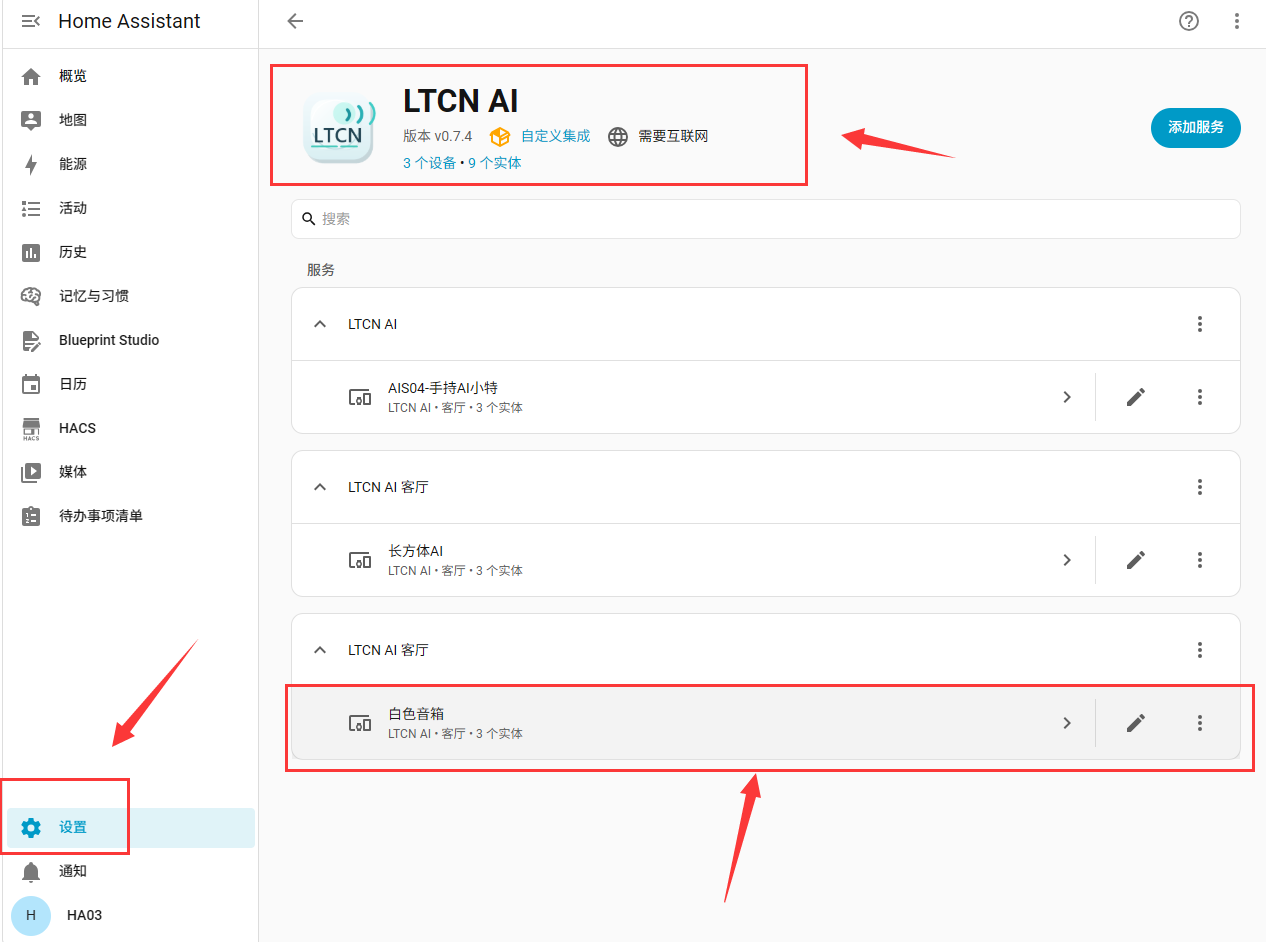
Open the one you want to upgrade (the example below is the white speaker) to reach its device page.
Click update under “Configuration” and confirm
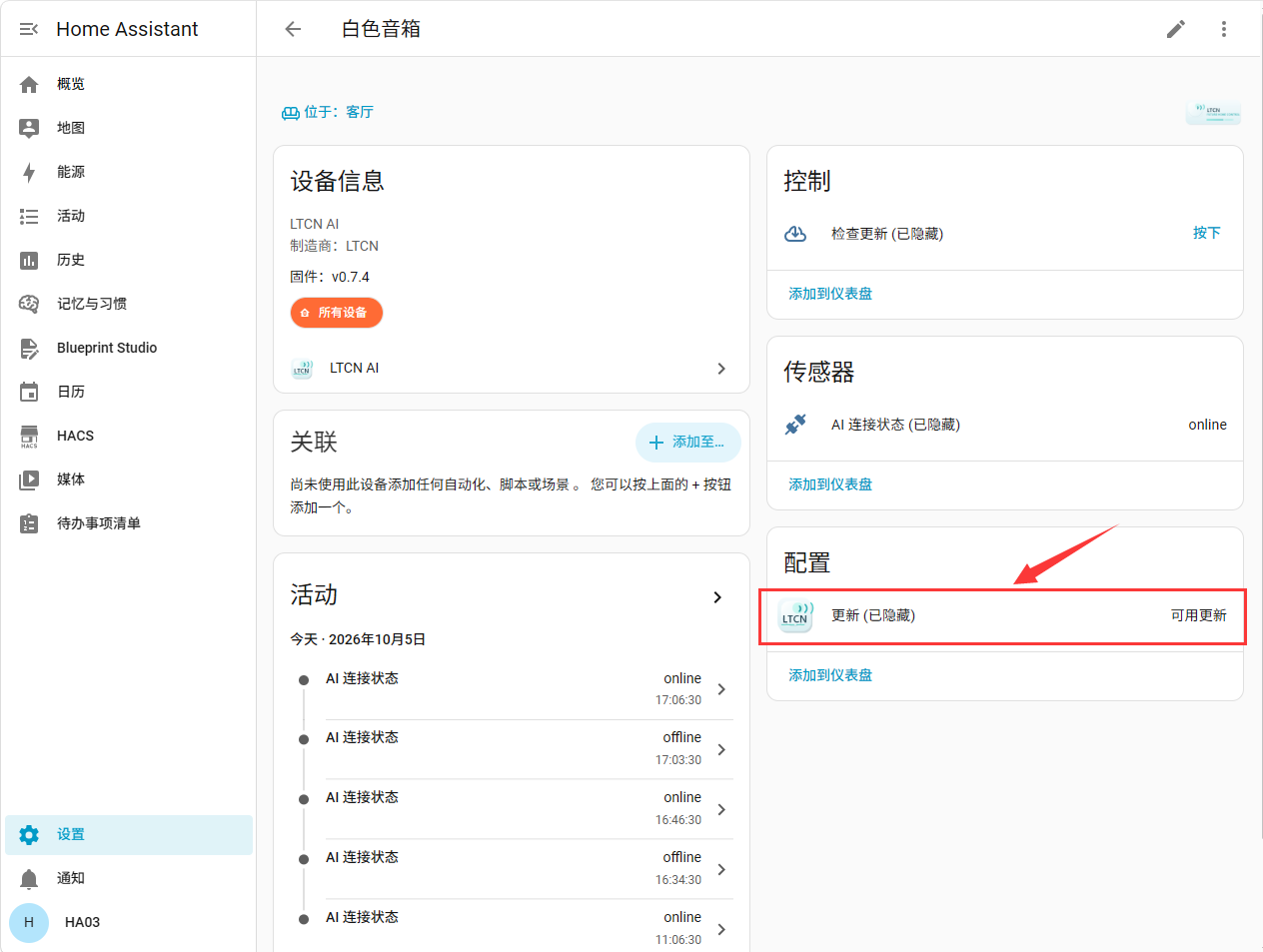
The device page has a Configuration column on the right. If Update there shows Update available, click it.
The dialog lists the installed version, the latest version and the release notes for this round — click Update at the bottom right to start.
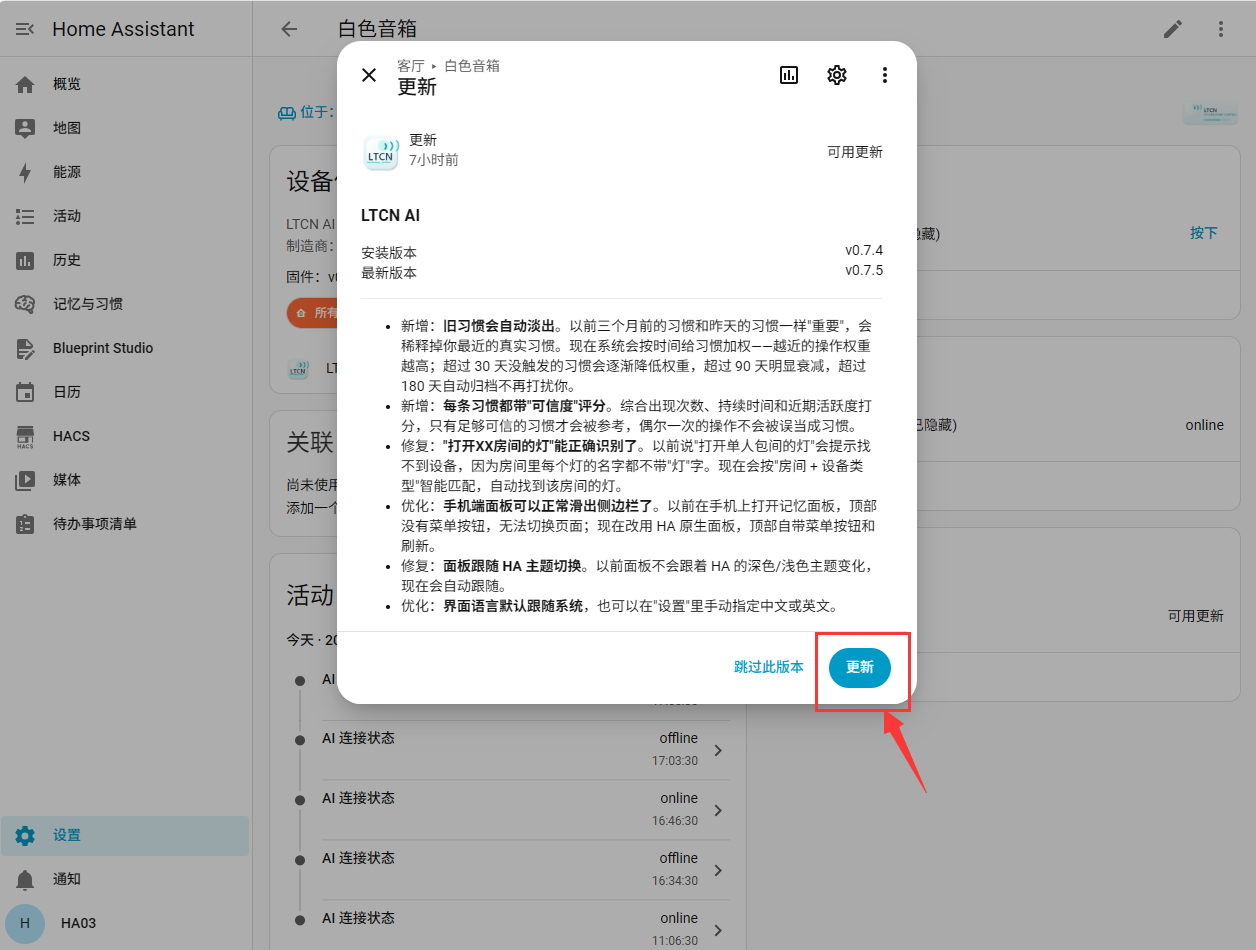
If the Update row says Up to date, there is no update available for this speaker right now. Do not close the Home Assistant page while the update runs; just wait for the progress to finish.
Next steps
To try what the new version can do right away, open Common Voice Commands and Feature Guide and read the commands out loud. If this speaker is not connected yet, start with Binding and Setup Guide for Lite Xiaozhi AI Voice Speaker to add it to Home Assistant.

