

This guide walks you through the whole process of connecting your Lite Xiaozhi AI voice speaker to LTCN AI: taking the communication address from the Xiaozhi console, registering it on the HAIOTS platform, and finally adding it in Home Assistant. No configuration files to edit — follow three steps and you are done.
You need to add the LTCN AI service: choose a plan on the HAIOTS platform and add it yourself. The plan already includes the server fee.
No extra payment is required — just register and complete the binding.
What this guide covers
- Get the MCP endpoint address in the Xiaozhi console
- Sign in to the HAIOTS platform and bind the Xiaozhi AI
- Add it in Home Assistant with LTCN AI
Get the MCP endpoint address in the Xiaozhi console
Xiaozhi needs a communication address to reach your Home Assistant, and you get that address from its cloud console. Open and sign in to the Xiaozhi console in a browser on your computer or phone (usually xiaozhi.me; if you self-host it, use your own console address).
- In the Agent list, find the Xiaozhi you want to connect and click Configure on its card;
- In the configuration panel, switch to Extended Capabilities and expand MCP Endpoint;
- Click the copy icon on the right and copy the address that starts with
wss://.
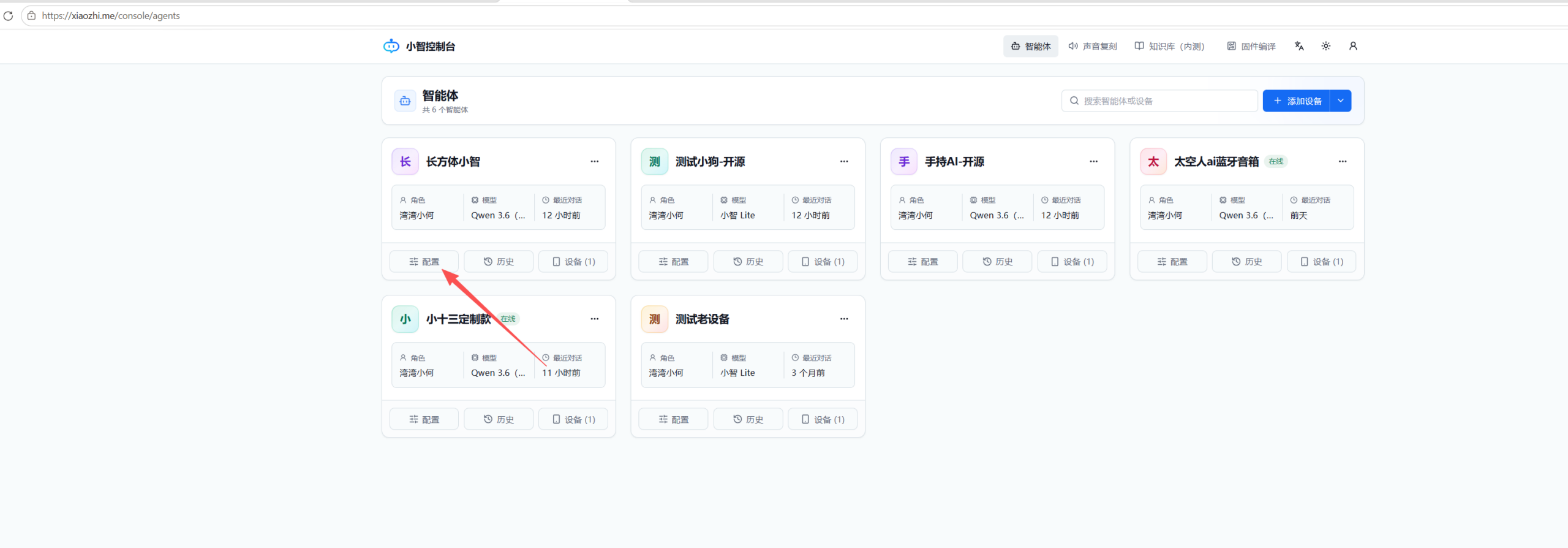
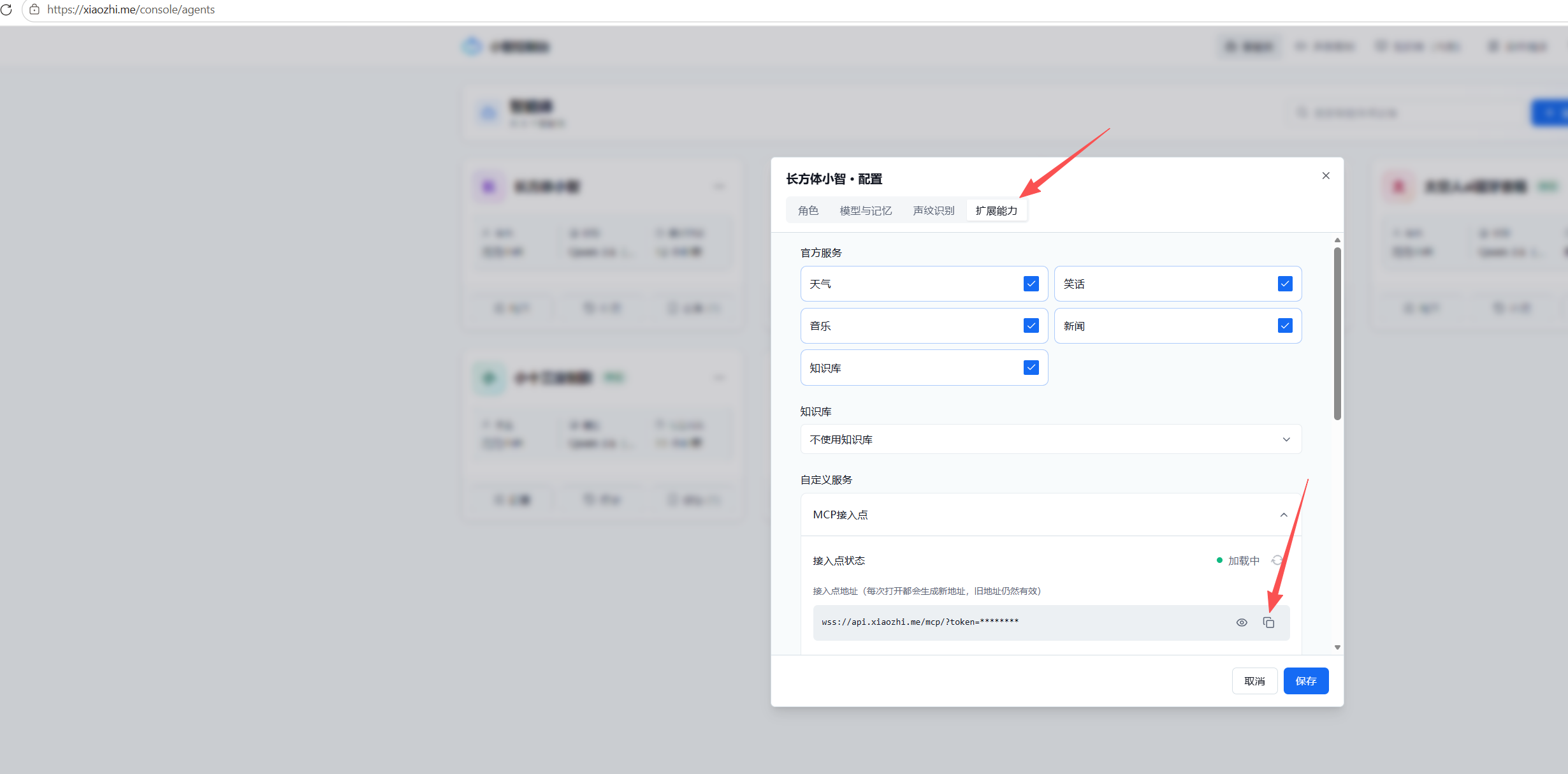
wss://That string is the WSS address you will fill in later. It is a dedicated channel between your Xiaozhi and the cloud, so do not share it with anyone. If it leaks or stops working, simply come back to this page and copy a fresh one.
Sign in to the HAIOTS platform and bind the Xiaozhi AI
Once you have the WSS address, register it on the host under your account on the HAIOTS platform. Open hms.smrte.cn/login, sign in and go to My Hosts.
- Click Xiaozhi AI Binding above the host list;
- In the “Bind Xiaozhi AI Device” dialog, choose the host you want to bind, paste the WSS address from the previous step into WSS Address and click Confirm;
- After a successful binding a Device ID appears on the card — copy it, you will need it in step 3.
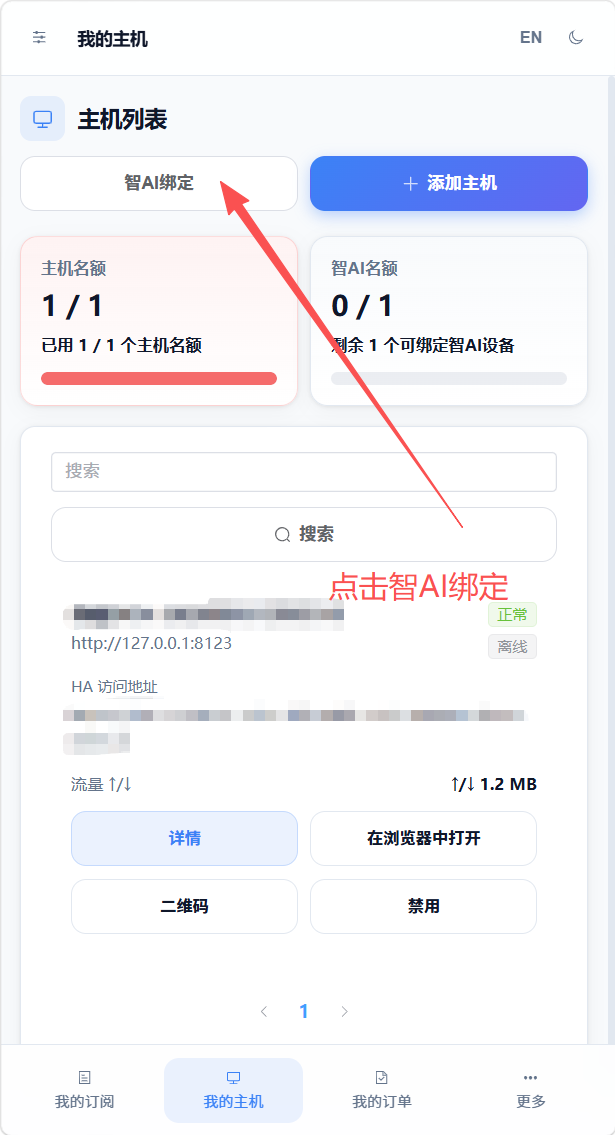
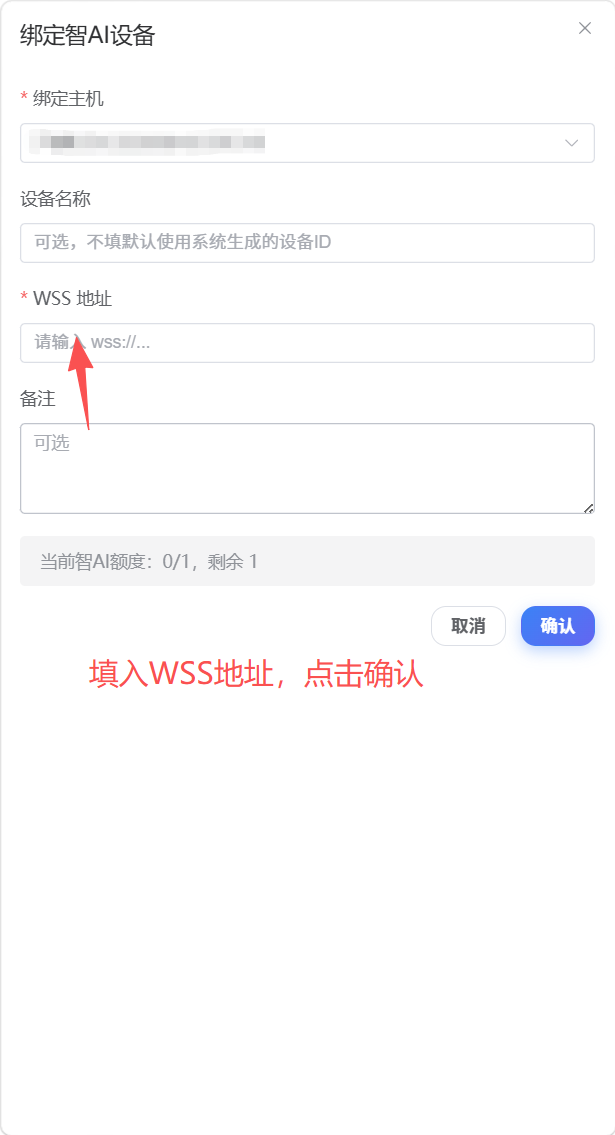
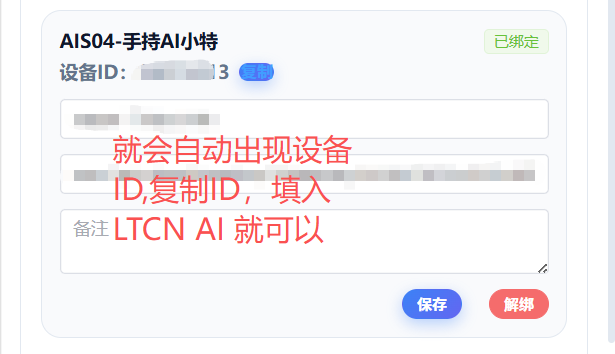
Each host has a limited Xiaozhi AI quota (the bottom of the dialog shows your current Xiaozhi AI quota), so check that you still have some left before binding. To unbind, click Unbind at the top right of the same card.
Add it in Home Assistant with LTCN AI
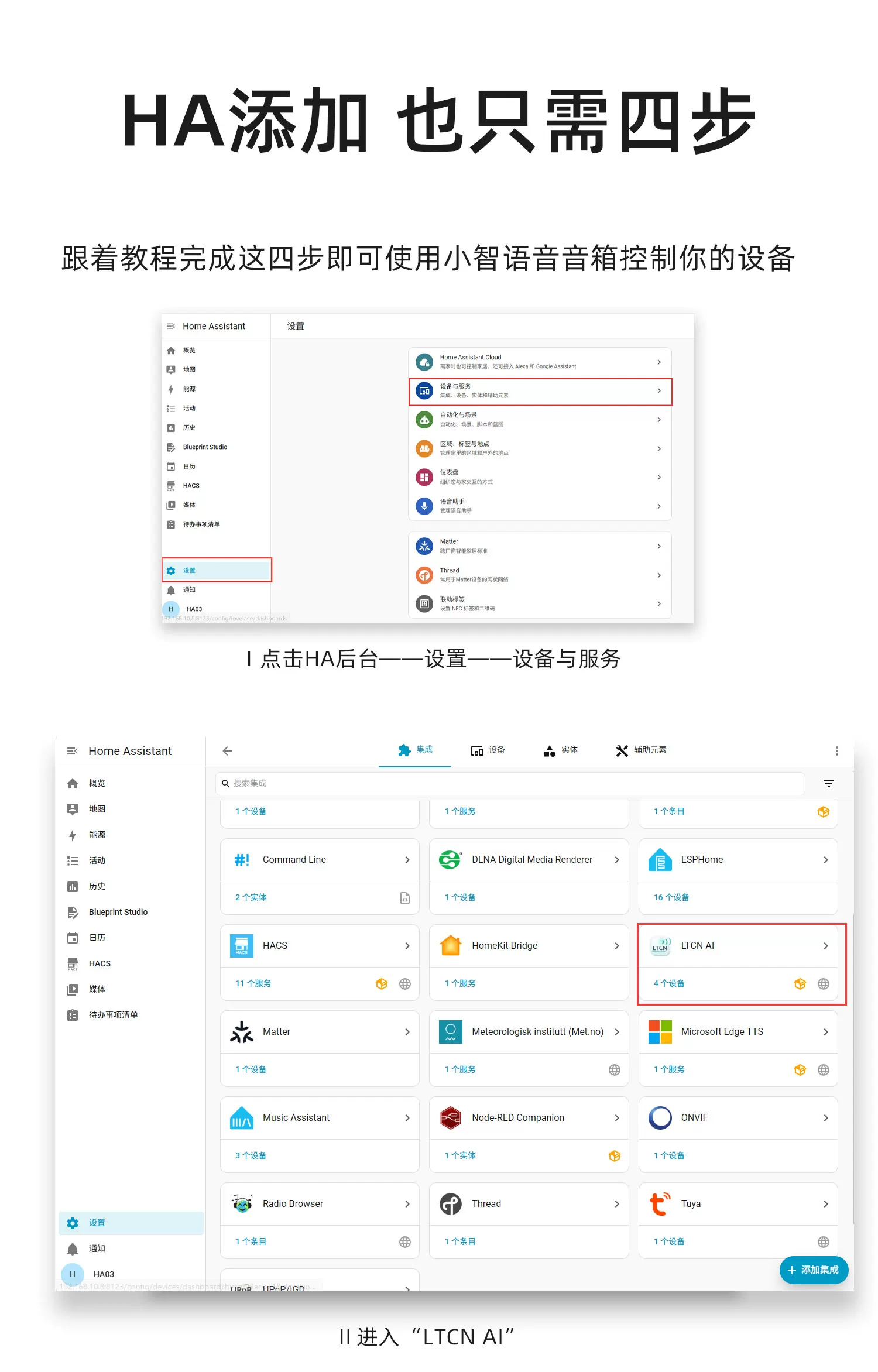
The last step happens inside Home Assistant. In the left sidebar go to Settings → Devices & Services and open LTCN AI. If it is not in the integrations list yet, click Add Integration at the bottom right, search for LTCN and install it.
- On the LTCN AI page, click Add Service at the top right;
- In the dialog, enter the Device ID you copied in step 2 into AI ID number;
- Pick the speaking language you need, leave everything else at its default (the authorization token is generated automatically) and click Submit.
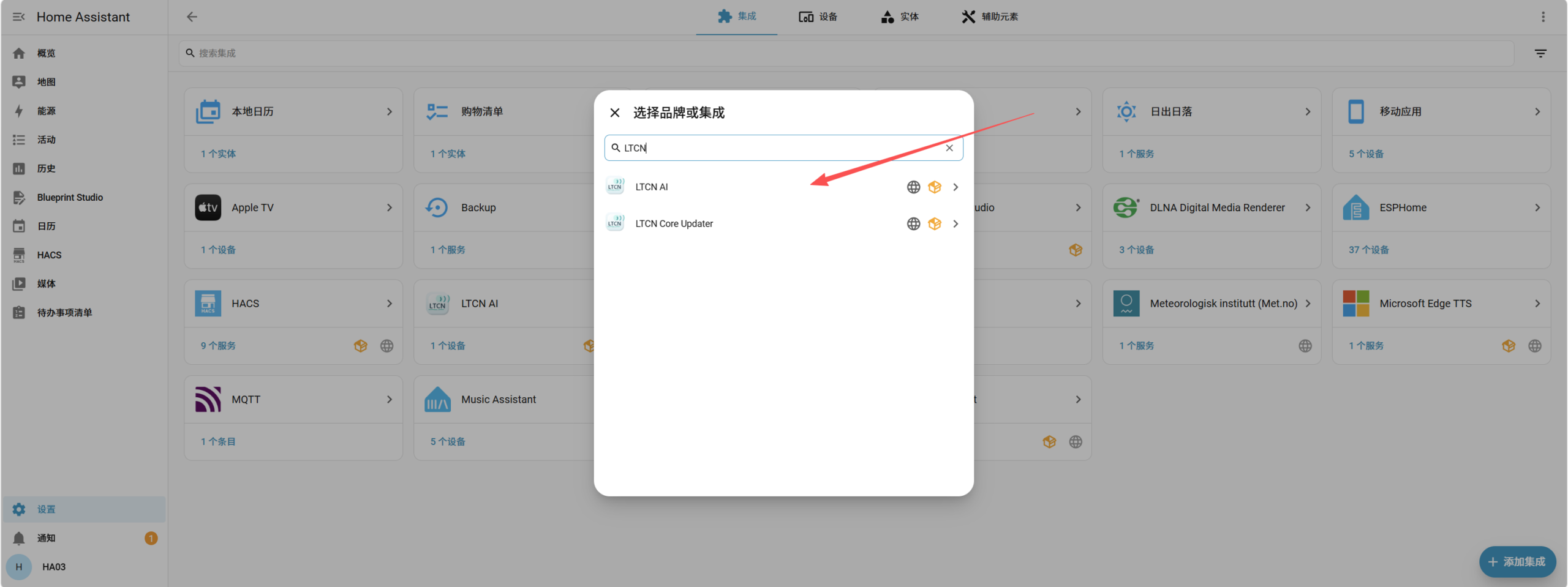
LTCN and pick “LTCN AI”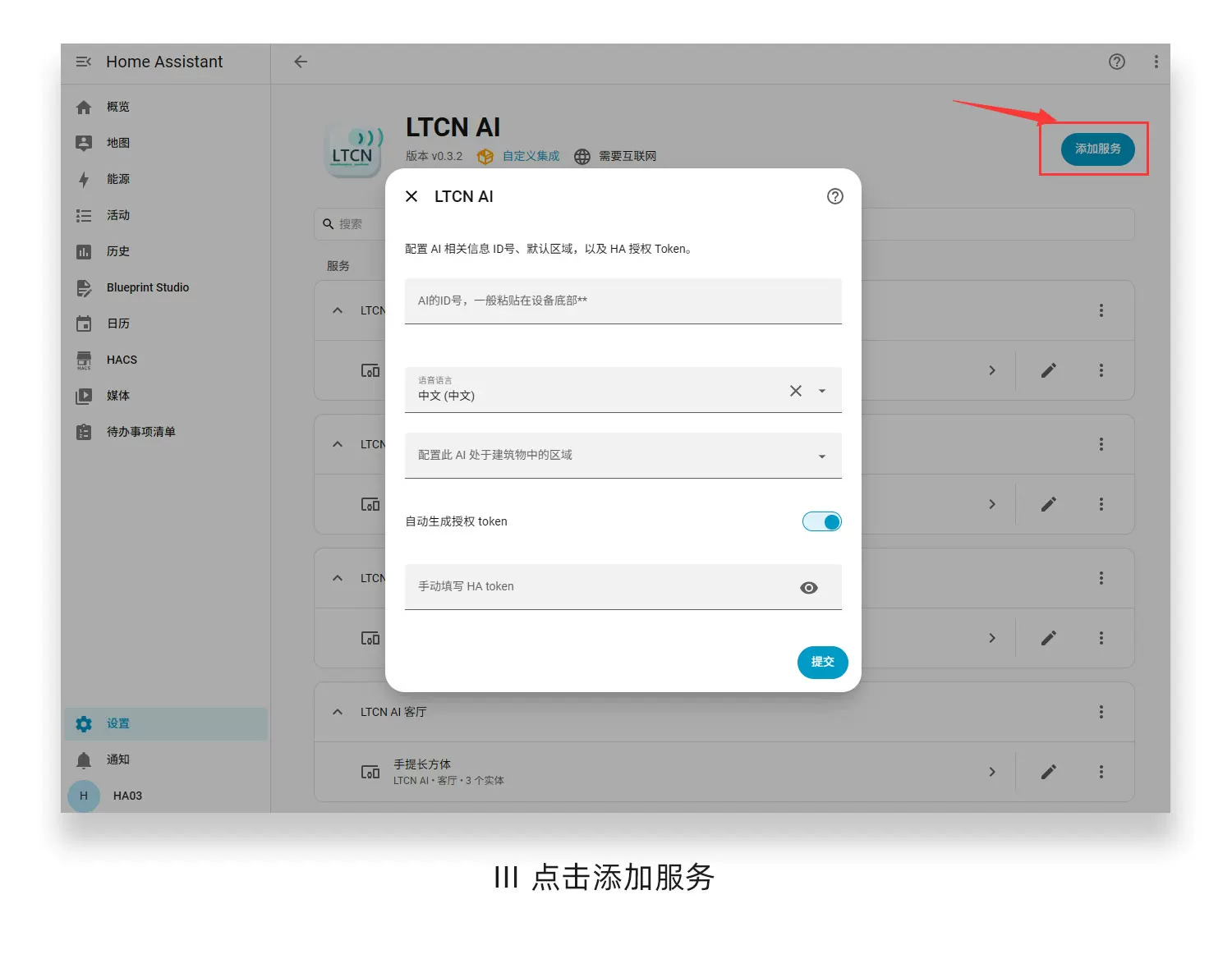
After submitting, the device appears under the LTCN AI integration. Talk to your Xiaozhi and it can control the devices on that host. If it says the ID is invalid, go back to step 2 and check that the Device ID was copied completely and that the bound host is the same one running this Home Assistant.
First, check: did you already add it the MCP way?
If you previously added Xiaozhi to HA through MCP, you must delete that one first — otherwise it will fight with the new LTCN AI integration over the same device. In the HA integrations list the two look like this:
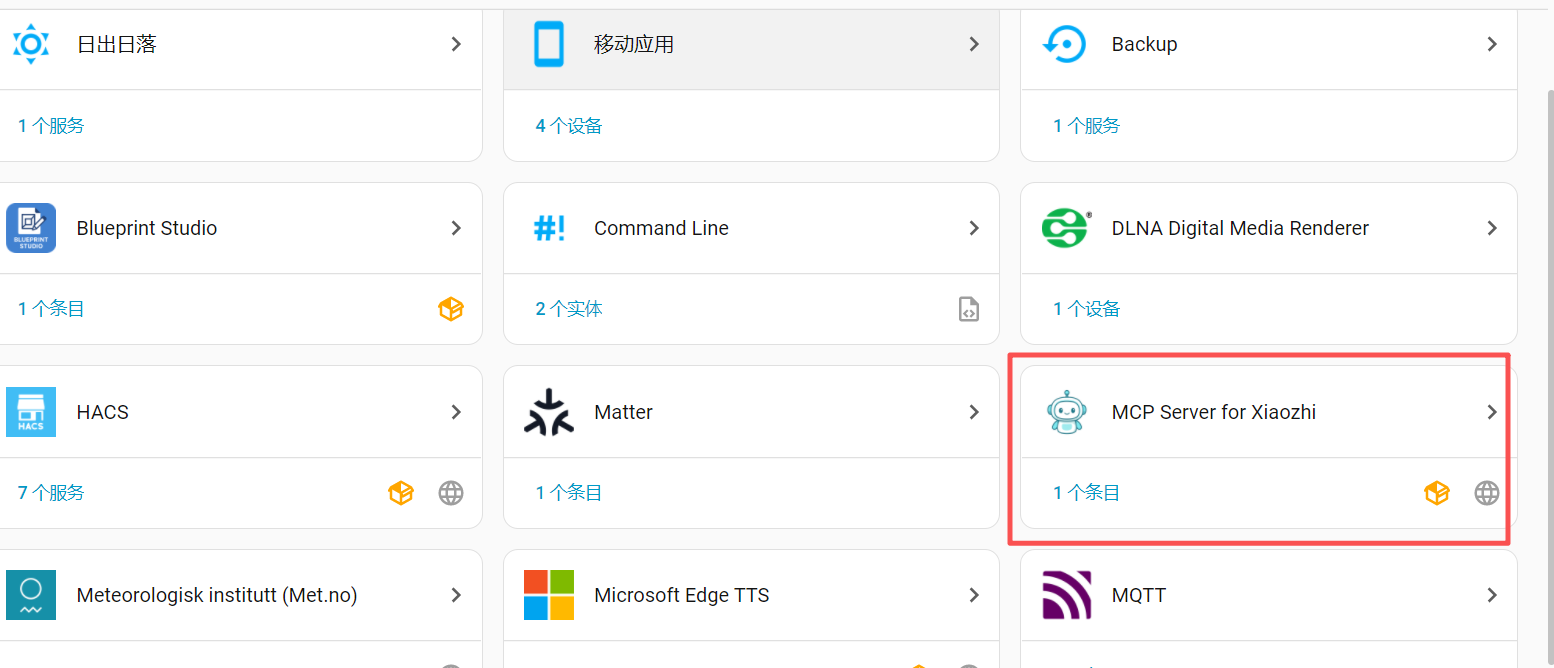
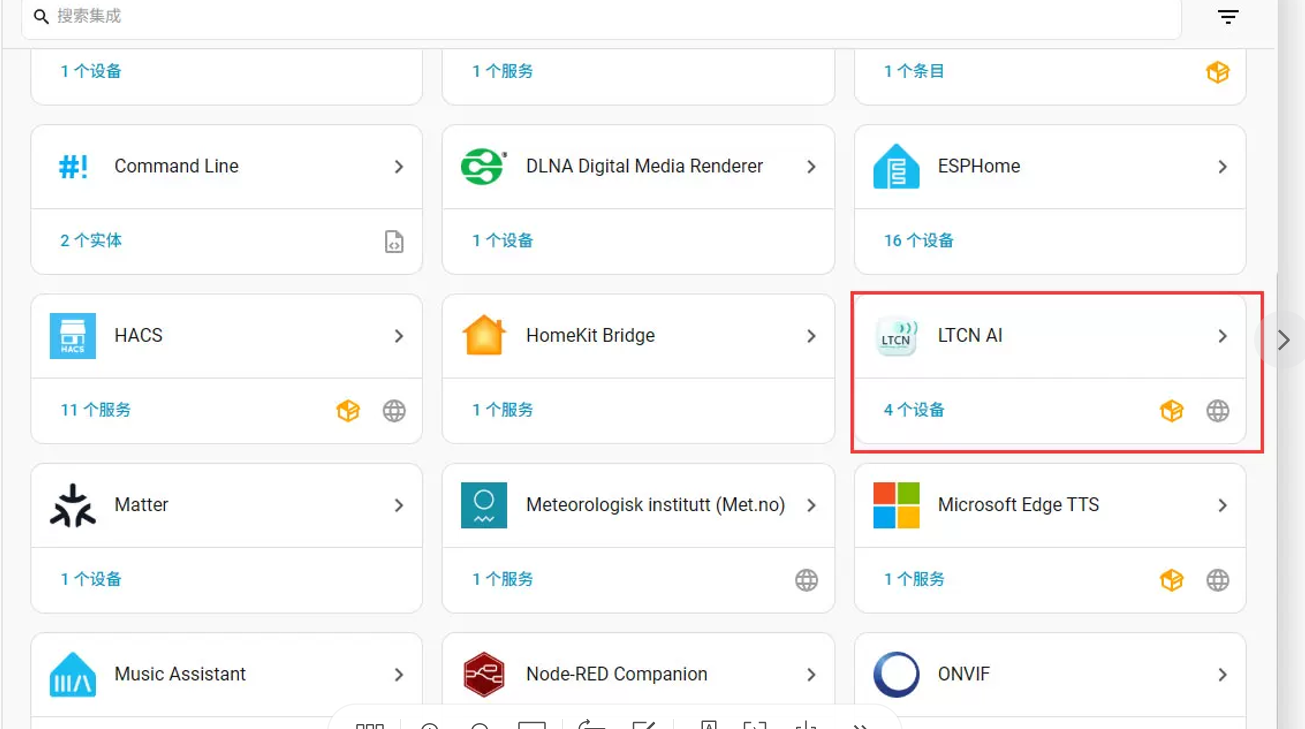
The highlighted MCP Server for Xiaozhi is the old way — open it and delete the entries inside. LTCN AI is the one this guide uses. Make sure the old one is fully removed before you continue.
Next steps
Your Xiaozhi is now connected and ready to talk to. If this is your first time setting up a host, start with Out of the Box | HAI Series Host Getting Started Guide to get the host running; once it is up, open Common Voice Commands and Feature Guide and simply read the commands out loud.

